
A workflow automation is a rules-based engine that triggers actions when conditions match across boards, columns, and items. Monday.com automation is a rules-based workflow engine that triggers actions, sends notifications, and moves items across boards without manual intervention. The product exposes two coexisting builder surfaces: a classic board automation flow rooted in the Automate button on every board, and a newer AI workflow builder organized around blocks, templates, and the Autopilot hub. Both surfaces share the same trigger-condition-action grammar, but they live in different parts of the interface and have different plan eligibility. Confusing the two is the most common reason a working setup guide produces a non-working automation.
This article walks through the procedural setup for each path, then covers cross-board automation, third-party integration actions, troubleshooting, and the advanced patterns that reduce automation sprawl on busy boards.
How Monday.com Automation Works

Monday.com automation in the classic builder is created from any board through the Automate button, which routes into the Manage tab of the Automations page and exposes a Create automation control on the right side of the screen (Monday.com Support: The board Automations page). The sequence below follows the verified vendor path. Each step maps to a control labeled exactly as it appears in the interface, and the order is non-negotiable because the trigger picker filters the available actions.
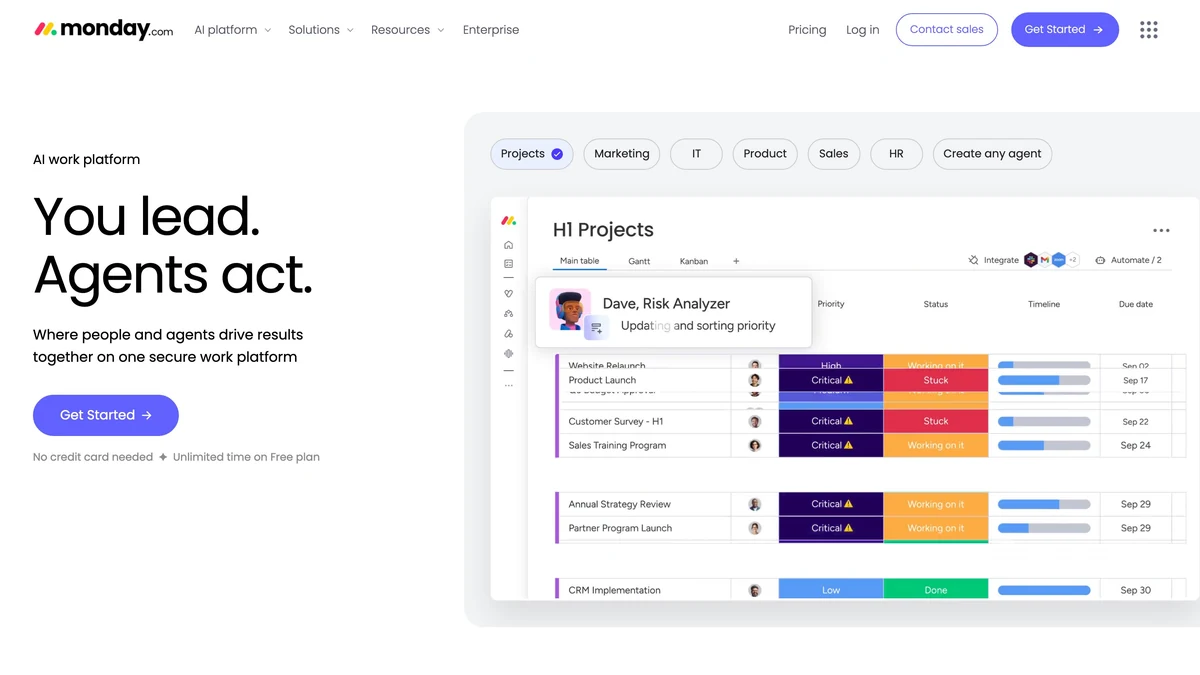
- Open the target board, then click Automate in the top-right corner. The Manage tab of the Automations page opens (Monday.com Support).
- Click Create automation on the right side of the screen to open the builder, or click the Create tab to browse the automation template gallery first.
- Choose a recipe from the template list, or click Create from scratch to build a custom trigger and action pair (Monday.com Support: Get started with monday automations).
- Click When this happens and pick a trigger. Common picks include a status column trigger, a date arrival, item creation, or a sub-item state change.
- Configure any conditions on the trigger, such as a specific status value or a person filter. The condition runs before the action fires and prevents accidental fan-out.
- Click Then do this and choose an action: notify a person, move the item to a group, create a subitem, send an email, or update a column value.
- Chain additional actions onto the same automation recipe if needed; the vendor docs confirm multiple actions can sit on a single template (Monday.com Support).
- Click Create automation to save and activate. The new rule appears in the Manage tab and begins firing immediately.
Not every column type supports a trigger. Unsupported columns do not appear in the trigger picker at all, which is the signal to switch to a different column or use an item-event trigger such as item created. The Manage tab also serves as the operational console for existing automations, where rules can be paused, edited, or deleted in bulk (Monday.com Support: Managing your board Automations). Once status-change automations begin updating items, the resulting event stream feeds dashboards covered in real-time analytics for CRM and sales platforms, and downstream marketing pipelines documented in the Google Analytics 4 ecommerce tracking guide.
Setting Up an AI Workflow Automation
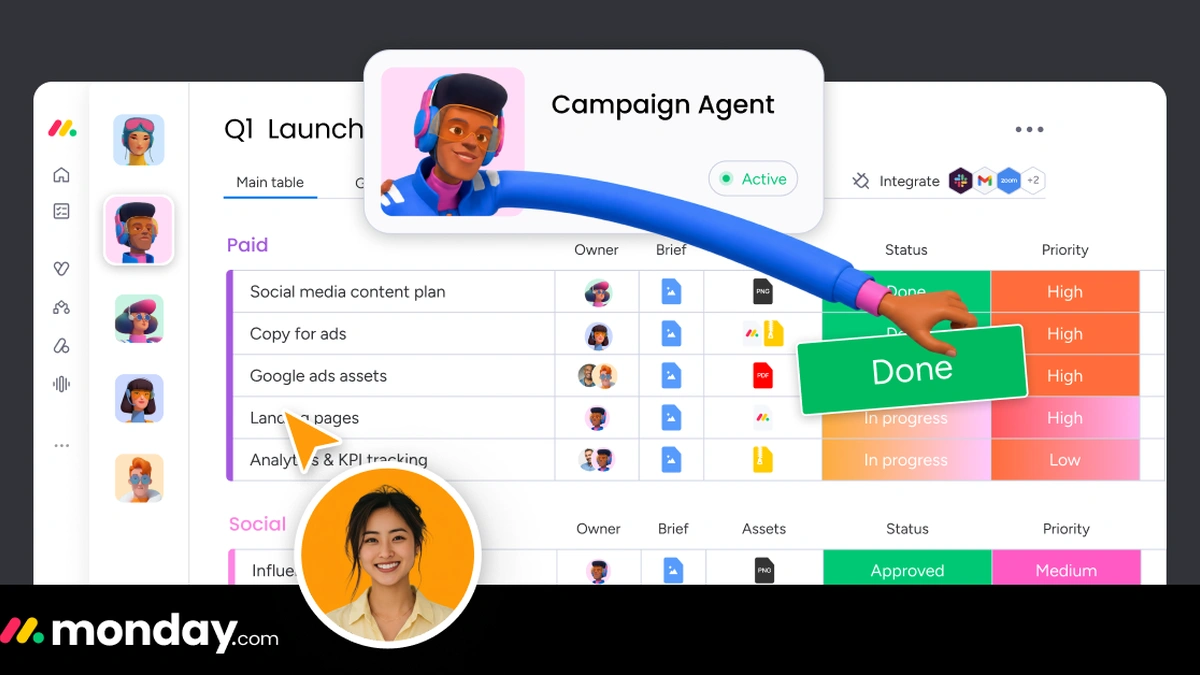
Monday.com automation in the AI workflow builder lives in a separate surface from the classic Automations page and uses a block-based canvas instead of a single trigger-action recipe. The entry points are the AI workflows item in the left panel, the Autopilot hub, or the workspace context menu (Monday.com Support: AI Workflows features and capabilities). The AI workflow builder is available on Pro and Enterprise plans; Basic and Standard plans retain access to classic recipes but cannot open the block canvas or use Sidekick-assisted generation.
Each workflow block on the canvas falls into one of five types documented by the vendor: Action blocks that perform work such as create item, If/Else blocks that gate the next step on a condition, Multi-branch condition blocks that fork into parallel conditional paths, Wait for event blocks that pause until a named event fires, and Delay blocks that hold for a fixed time (Monday.com Support). The Smart condition workflow block uses AI to generate dynamic conditions without manual rule definition, and the Sidekick button at the top of the canvas accepts a plain-language description and assembles a candidate workflow from it.
- Click AI workflows in the left panel, or open the Autopilot hub and select the workflow builder entry (Monday.com Support).
- Click the Sidekick button at the top of the workflow builder to open the chat surface.
- Describe the desired automation in plain language, for example, when a deal moves to Negotiation, create a tasks board and notify the account owner.
- Optionally pick an automation template from the gallery instead of starting blank; Sidekick will customize the template against the request.
- Review the generated block sequence on the canvas. Replace any If/Else block with a Smart condition block where the rule is hard to define manually.
- Click Activate to publish the workflow. The Automations page lists it under active workflows alongside any classic automations.
The block canvas overlaps with collaboration tooling decisions discussed in the Slack vs Microsoft Teams for enterprise analysis, and with workspace consolidation tradeoffs covered in the Notion vs other collaboration tools comparison. Independent research on the work-management category tracks AI-assisted workflow design as the defining product investment of the current vendor cycle (Forrester: The Work Management Platform Landscape).
Cross-Board and Integration Automations
Monday.com automation extends beyond a single board through cross-board automation templates, which let an action on one board trigger an action in a completely separate board (Monday.com Support: Cross-board automations). The setup path is the same as for a normal board automation: click Automate, open the Create tab, then Create from scratch, choose a trigger on the source board, and select a cross-board action that targets the destination board. A common pattern is pushing a closed-won CRM item from a sales board into an onboarding board as a new project record without anyone copying fields by hand.
Third-party integration actions follow the same builder path. The Integrate button sits next to Automate in the top-right of any board and exposes the integration catalog, including Slack, Gmail, Google Drive, Jira, GitHub, Salesforce, and others; integration actions then appear in the action picker when building automations on that board (Monday.com Support: The board Automations page). The list below pairs four common integrations with the integration action they enable, so the right notification trigger or sync action is easy to locate during setup.
- Slack
- Send a channel message when a status column changes, or alert a user when an item is assigned. Used as the standard notification trigger for chat-first teams.
- Gmail
- Send a templated email when a deadline passes or when an item moves to a specific group. Useful for client-facing status updates without leaving the board.
- Jira
- Create a Jira issue when an item lands in an engineering group, and mirror status changes back to the originating monday.com item.
- Salesforce
- Push a new monday.com item when a Salesforce opportunity reaches a stage threshold, keeping post-sale workflows aligned with the CRM record.
Cross-board automation also pairs naturally with async collaboration patterns covered in remote work tools vs in-office tools, where item handoffs across teams replace status-update meetings. Comparable workflow logic in other project tools is documented in the Asana vs Trello vs ClickUp comparison. Cross-platform engineering analyzes of trigger-action systems in collaborative platforms reinforce the same architectural pattern (IEEE Software: Workflow Automation in Collaborative Platforms).
Troubleshooting Common Automation Issues
Monday.com automation failures cluster into a small set of repeatable causes. The Automations page is the diagnostic surface for all of them: it exposes Run history for individual automation executions, My connections for integration tokens, and Account usage for action-quota consumption (Monday.com Support: The board Automations page). The four failure modes below cover the majority of the automation incidents, with the fix path noted against each.
- Automation not firing. Cause: the trigger column type was changed after the automation was saved, or the board has the automation disabled. Fix: open the Manage tab, confirm the rule is active, and reselect the trigger column. Run history in the Autopilot hub shows whether the trigger event was even seen.
- Integration action failing silently. Cause: the OAuth token for Slack, Gmail, Jira, or Salesforce has expired. Fix: open My connections in the Autopilot hub, locate the failed integration, and re-authenticate. The integration action will resume on the next trigger fire.
- Automation loop. Cause: two automations triggering each other in a cycle, for example, a status column trigger setting another column whose change re-fires the first rule. Fix: add a condition that suppresses the action when the target state is already reached.
- Action quota reached. Cause: the workspace has consumed its monthly automation actions allowance under the current plan. Fix: open Account usage in the Autopilot hub to confirm the cap, then either consolidate the workflow automation into fewer rules or upgrade the plan at monday.com/pricing.
Treating the Autopilot hub as the first diagnostic stop, rather than rebuilding the rule from scratch, saves the most time on intermittent failures because the Run history view distinguishes between a trigger that never fired and an action that fired and erred.
Advanced Automation Tips for Power Users
Monday.com automation scales cleanly only when the rule set is kept small and expressive. The four patterns below come from the vendor's own AI workflow documentation and reduce the count of separate automations a busy board accumulates, which keeps the Manage tab readable and the Autopilot hub Run history easy to scan (Monday.com Support: AI Workflows features and capabilities).
- Chain multiple actions on one recipe. A single trigger and action pair can carry several actions in sequence. Collapsing three notify-and-move automations into one removes redundant trigger evaluations and keeps the Manage tab honest about what is actually running.
- Use Multi-branch conditions in the AI workflow builder. One Multi-branch workflow block replaces several single-condition automations, branching to different actions based on the column value rather than firing competing rules.
- Batch column writes with Update item. The Update item and Update subitem blocks can change multiple column values in a single block, which removes a chain of sequential update actions that would otherwise each consume an action from the monthly quota (Monday.com Support).
- Automate board provisioning with Create board. The Create board action block automates new board creation, useful for repeating project templates such as auto-generating a client onboarding board when a CRM item reaches Onboarding status.
Teams running custom processes that fall outside the catalog can author bespoke trigger and action blocks using the monday Apps Framework, which the developer documentation defines as the path for shipping new automation building blocks that show up in the same Create from scratch picker as native blocks (Monday.com Developer Docs: Automation templates). The repetitive task burden that drove the initial automation effort generally returns within a quarter unless someone owns periodic pruning of stale rules, which is why the advanced playbook above prioritizes fewer, denser automations over a long list of single-purpose recipes.
Further reading
Frequently Asked Questions
How do I set up an automated workflow in Monday.com?
Open any board, click the Automate button in the top-right corner, then select Create automation on the Automations page. Choose a trigger (such as a status column change or a date arriving), set an optional condition, then define one or more actions (notify a person, move the item to a group, or create a subitem). Click Save to activate. The automation runs automatically each time the trigger fires, with no further manual steps required.
Which Monday.com plans include the AI workflow builder?
The AI workflow builder is available on Pro and Enterprise plans. Basic and Standard plan users can access classic automations through the Automations page but cannot use the AI workflow builder, Sidekick-assisted design, or the block-based workflow canvas. Upgrade eligibility and current plan pricing are listed at monday.com/pricing.
What should I do if my Monday.com automation stops firing?
Open the Autopilot hub and click Run history to see whether the automation was triggered and what happened at each step. Common causes of silent failure are an expired integration token (fix: re-authenticate under My connections), a trigger column type that was changed after the automation was saved, or an account-level action quota being reached (check Account usage in the Autopilot hub). Re-saving the automation after fixing the root cause reactivates it without loss of history.