Stick drift is a controller fault that makes an analog stick report movement when nobody is touching it, so a character walks or a camera pans on its own. Most ways to fix stick drift start in software: reset the controller, update its firmware, recalibrate the stick where the console allows it and leave a dead zone in place. If the drift survives all of that, the stick itself is worn and needs a new module or a repair. The sensor behind each stick shapes how likely drift is, which is why Razer, ASUS and Nacon now advertise Hall effect or TMR sticks as an alternative to the potentiometer kind.
How to Fix Stick Drift
To fix stick drift, clear the software causes first and the hardware last: reset the controller, install the latest console and controller firmware, recalibrate the stick, and raise the dead zone in the game or companion app. If the stick still moves on its own, replace the stick module where the controller allows it, or send it for repair.
Fixing stick drift starts with software, because a bad center reading is the cheapest fault to clear. Work through these steps in order on any controller:
- Remove skins and covers. Nintendo lists this step before calibration on its Joy-Con repair page.
- Reset the controller. PlayStation's DualSense troubleshooting page starts with a reset.
- Update everything. Nintendo asks owners to install the latest console system update and controller firmware first, and Nacon fixed its own drift bug with a firmware update.
- Calibrate. Use the console's calibration screen where there is one.
- Raise the dead zone. Companion apps such as ASUS Gear Link expose a Dead Zone setting, which ASUS describes as preventing drift when you are not touching the joystick.
- Swap the module. On a DualSense Edge, replace the stick module instead of the whole controller.
- Send it for repair. If a stick cannot be calibrated, Nintendo says the Joy-Con needs repair, not the console.
How to Fix Stick Drift on PS5
To fix stick drift on a DualSense, start where PlayStation's DualSense troubleshooting page starts every controller problem: with a reset. Turn off the PS5, unplug the USB cable from the controller, then use a pin to press and hold the reset button in the small hole next to the Sony logo on the back for at least 5 seconds. Reconnect the controller with the USB cable and press the PS button. If the console still works, PlayStation's next step is to update the PS5 system software to the latest version.
The controller has its own firmware too. PlayStation says DualSense device software updates arrive with PS5 system software updates, and that a manual update runs from Settings, then Accessories, then Controller (General), then DualSense Wireless Controller Device Software, per its controllers support page. On a PC, the same page points to the PlayStation Accessories app. PlayStation's troubleshooting page lists no stick calibration step for the DualSense; after the reset and the update, its analog stick option leads to repair. Before you get there, check whether the drift shows up in one game only and raise that game's dead zone setting if it has one.
Owners of a DualSense Edge have one more option: PlayStation says a stick module that stops working properly can be replaced with a new one sold separately, per its DualSense Edge stick module guide. In the US and Canada, PlayStation's limited warranty, published under accessories, runs for one year from the date of purchase and covers defects in material and workmanship with a repair or a replacement; the buyer starts the claim at PlayStation Repairs and pays the inbound shipping, and the warranty does not apply to damage from abuse or neglect.
How to Fix Stick Drift on Xbox
To fix stick drift on Xbox, start with the firmware update. Microsoft says an Xbox Wireless Controller can be updated wirelessly, over a USB connection or on a PC with the Xbox Accessories app, on its controller update page, and the same page lists Asurion as its support partner for warranty, console and controller issues. After updating, test the stick in more than one game before deciding it is worn, since a single game's dead zone can be the cause.
How to Fix Stick Drift on Nintendo Switch 2
Nintendo Switch 2 has a calibration screen. Open System Settings from the HOME Menu, select Controllers & Accessories, then Calibrate Control Sticks, and fully tilt the stick in any single direction for a few seconds, per Nintendo's Switch 2 calibration steps. If the result is not reflected, put the console to sleep and wake it, then press the SYNC button once and any other button to power the controller on again. On a Joy-Con 2, the same Nintendo support page places the SYNC button next to the SL or SR button.
European owners have a strong repair option. Until further notice, Nintendo says it will not charge buyers in the EEA, the UK and Switzerland for repairing Joy-Con control stick drift, even when it comes from wear and tear, on the same Joy-Con repair page. Nintendo may refuse the free repair when drift is caused by accessories not made by or for Nintendo, rental or commercial use or misuse, or when the controller was opened by anyone other than Nintendo or its partners, so weigh that before replacing a stick at home.
How to Fix Stick Drift on PC
On a PC, Steam Input has a dead zone setting. Valve's Steam Input documentation describes its Deadzone setting, on a scale from 0.0 to 1.0, as the radius of the central region to ignore. It also notes that most games apply their own deadzones to controller output, and warns that removing all deadzone means every position causes input. Raise the dead zone just until the cursor stops moving at rest, and no further, or small deliberate movements disappear with the drift.
How to Test for Stick Drift
A stick drift test shows whether the problem is the stick or the game. Leave the controller flat on a table, hands off, and check these in turn:
- Menus at rest. If the console's own menu cursor or camera moves without input, the controller is reporting movement.
- A calibration or test screen. On Switch 2, Nintendo's calibration flow ends with on-screen prompts to verify the control stick's functionality, which shows the stick's reading directly.
- A second game. Drift in one game only usually points to that game's dead zone, since Valve notes most games apply their own.
- A second controller. If a different controller drifts on the same console, look at the game or settings, not the stick.
- After each fix. Repeat the test after every reset, update or calibration, so you know which step worked.
What Causes Stick Drift
Stick drift starts with how an analog stick measures position. Each stick tracks two axes, and the controller treats one pair of readings as the center position. When the reading at rest wanders away from that center by more than the dead zone, the game sees input. Nintendo calls the symptom responsiveness syndrome, or so-called drifting, on its Joy-Con repair page. Several different faults produce it:
- Sensor wear. In a potentiometer stick, a contact slides across a resistive track every time the stick moves, and both surfaces wear.
- Imperfect return. A spring pushes the stick back to center, but not always to exactly the same spot. Alps Alpine rates the lever return precision of its RKJXV stick module at plus or minus 5 degrees.
- Debris and accessories. Nintendo asks owners to remove skins and covers before troubleshooting, and may refuse free repairs when drift is caused by accessories not made by or for Nintendo.
- Firmware and calibration. A wrong stored center or a software bug can push a healthy sensor off center.
- A dead zone set too small. Removing the buffer around center exposes every small return error as movement.
Of these five causes, only wear depends on how the stick senses position. That matters when comparing sensor types: a magnetic stick can remove wear, but it still depends on a spring, firmware and a sensible dead zone.
Potentiometer Sticks
Potentiometer sticks are the conventional design, and the one that wears by contact, which is the stick drift cause magnetic sticks remove. A potentiometer is a variable resistor: a wiper rides along a resistive track, and the voltage it picks up changes with its position, one track per axis. Alps Alpine, which sells this kind of module to device makers, lists its RKJXV series as a potentiometer type with a total resistance of 10 kΩ and an operating life of 2,000,000 cycles in its directions of travel, according to its RKJXV product page.
How fast a controller uses up that rating depends on how it is played; a twitchy shooter works the sticks far harder than a turn-based game. Once the track or wiper wears unevenly, the stick reads a slightly different value at rest, and drift begins.
Sony's answer on its premium controller is to make the stick a part you can swap. PlayStation says that if a stick module on the DualSense Edge stops working properly, it can be replaced with a new stick module sold separately, and that the left and right modules are interchangeable, per its DualSense Edge stick module guide. PlayStation does not name the sensor type inside the module. The swap itself takes no tools: a latch on the back releases the front cover, and a lever frees the module.
Hall Effect Sticks
Hall effect sticks attack stick drift by removing the sliding contact. A small magnet moves with the stick shaft, and a Hall effect sensor measures the change in magnetic field as it moves, so no part rubs against another to produce the reading. TDK describes its Hall effect sensors as precise, contactless magnetic sensing for position, speed and current, on its Hall sensors page.
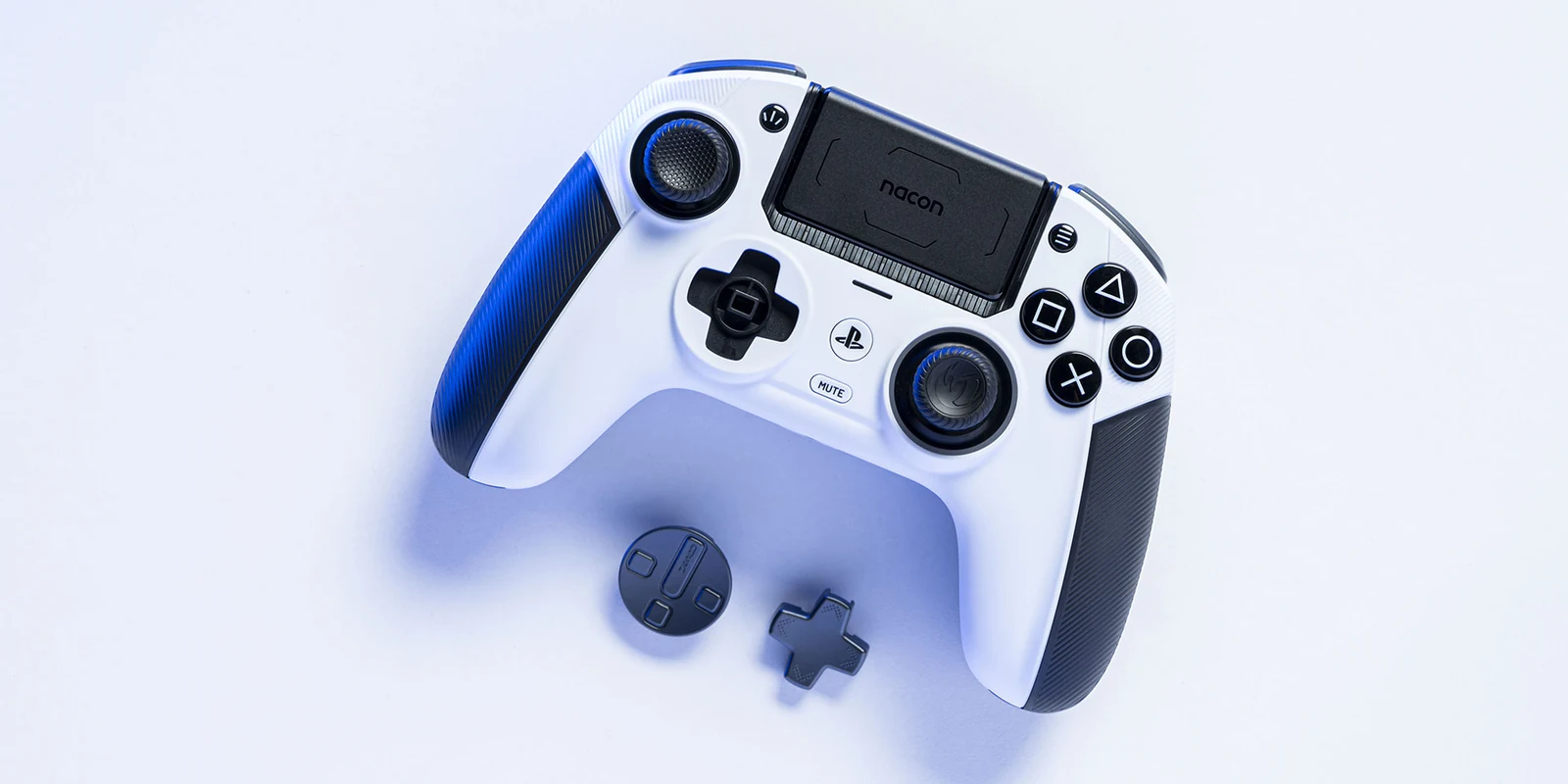
Controller makers sell the idea hard. Nacon says the Hall effect sticks and triggers on its Revolution 5 Pro for PS5 use magnetic technology that eliminates stick drift. Razer lists anti-drift Hall Effect thumbsticks on the Wolverine V3 Pro for Xbox and PC.
The fine print on Nacon's own Revolution 5 Pro page shows the limits. Its support notes say a Y-axis inversion issue that was causing joystick drift has been fixed in a firmware update. They also warn that the controller's FPS Pro mode, which switches off the dead zone, may cause slight drift if the joystick does not return exactly to center. Coming from a maker that sells its sticks as drift-free, it is a useful admission that a magnetic sensor fixes wear, not centering:
- What Hall effect removes: friction and contact wear in the sensing path.
- What it keeps: the spring return, the stored center and the firmware that turns readings into input.
- What owners still need: firmware updates, calibration and a small dead zone.
TMR Sticks
TMR sticks are the newer magnetic answer to stick drift. Tunnel magnetoresistance (TMR) sensors read a magnetic field as a change in electrical resistance, an effect TDK describes as rooted in quantum mechanics, and TDK says its TMR sensors deliver over 10× higher sensitivity, with low power consumption and a contactless, durable design, on its TMR sensors page. TDK lists gaming among the target uses.
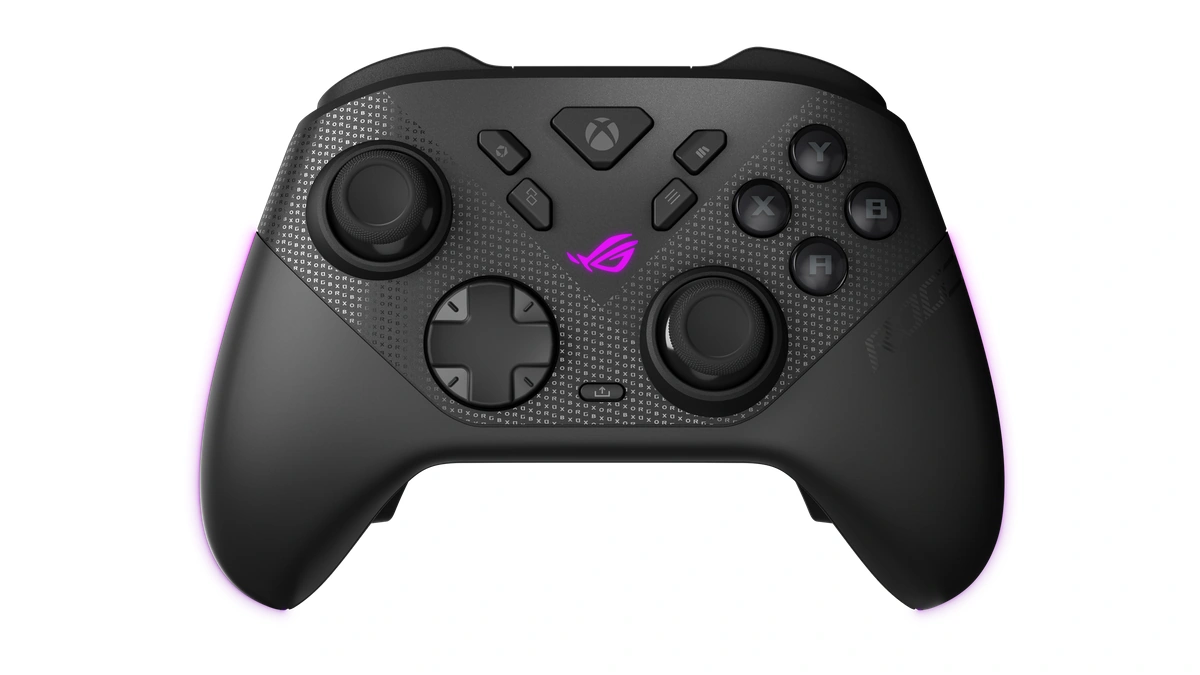
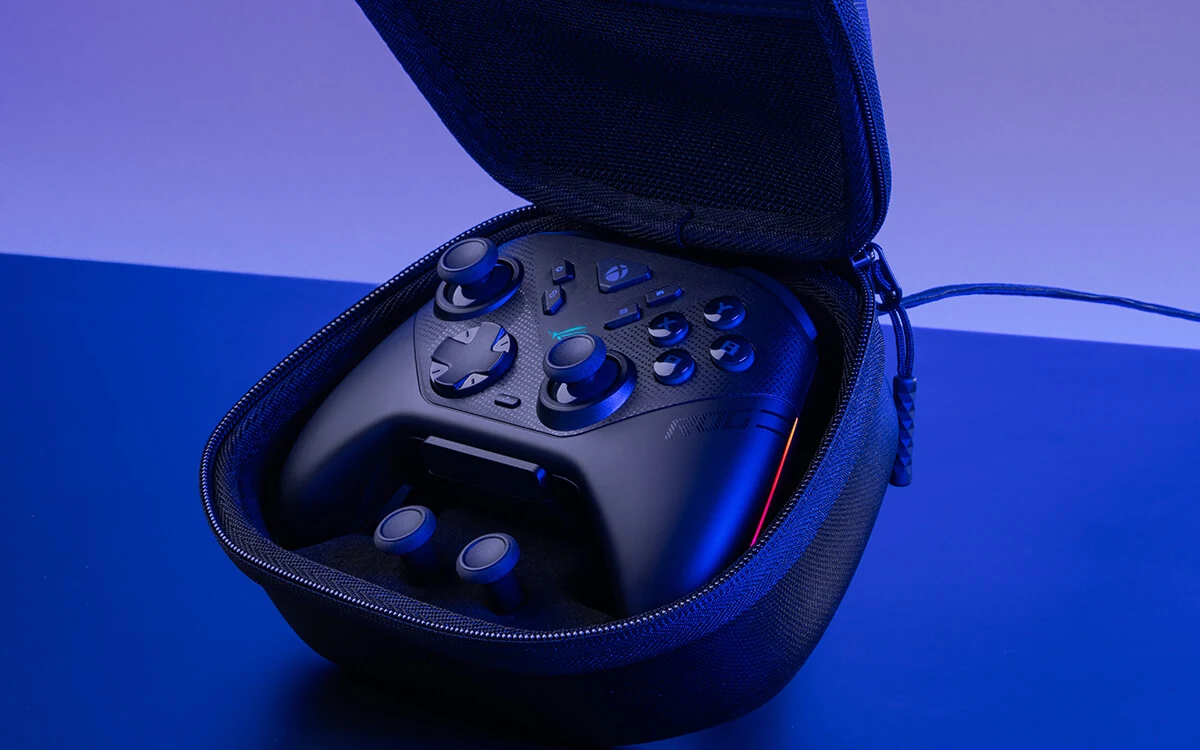
ASUS gives the plainest comparison from a controller maker. Its ROG Raikiri II FAQ says a TMR joystick works much like a Hall effect one, using internal sensors and magnets to detect position without physical contact, and calls TMR more accurate and more power-efficient than Hall effect joysticks. The ROG Raikiri II is Xbox-certified and uses TMR joysticks. Other makers use TMR too:
- Razer fits its PC-only Wolverine V3 Pro 8K PC with anti-drift TMR thumbsticks that it says evolved beyond typical Hall Effect designs.
- Valve fits its Steam Controller with magnetic TMR thumbsticks it says are designed for long-term reliability, with capacitive touch for motion controls.
- ASUS pairs the TMR joysticks on the ROG Raikiri II with TMR sensor triggers.
For a wireless controller, the power claim is worth weighing: a sensor that draws less leaves more of the battery for everything else.
| Sensor type | How it reads position | Sliding contact | Example |
|---|---|---|---|
| Potentiometer | Wiper on a resistive track | Yes | Alps Alpine RKJXV module |
| Hall effect | Magnet over a Hall sensor | No | Nacon Revolution 5 Pro, Razer Wolverine V3 Pro |
| TMR | Magnet over a magnetoresistive sensor | No | ROG Raikiri II, Valve Steam Controller |
Choosing a Controller That Resists Stick Drift
A controller that resists stick drift is one whose maker states the sensor type and backs it with software and repair options. Use this checklist before buying:
- Sensor type on the spec sheet. Hall effect or TMR should be named, as ASUS, Razer, Nacon and Valve do. If a box says only anti-drift, ask what that means.
- Platform support. Check which consoles a controller is certified for: ASUS says the ROG Raikiri II is Xbox-certified, and Nacon builds the Revolution 5 Pro for PS5.
- Replaceable parts. Swappable stick modules, as on the DualSense Edge, turn a dead stick into a spare-part purchase.
- Software controls. Look for calibration and dead zone settings in a companion app.
- Repair terms. Check the warranty length and whether drift is covered in your region before you buy, not after.
With magnetic sensing, check features too. Nacon says the Revolution 5 Pro has no adaptive triggers because it chose Hall effect triggers for durability, and the PlayStation 5, Xbox Series X and Nintendo Switch feature comparison sets out what each console's own controller brings. Handhelds with built-in sticks carry the same drift risk inside the device, which weighs on the Steam Deck or Nintendo Switch decision and on the wider list of portable gaming consoles. The gaming peripherals comparison covers the keyboards, mice and headsets that sit beside the controller.
Further reading
Frequently Asked Questions
Can you actually fix stick drift?
Often, yes, if the cause is software. A controller reset, a firmware update, calibration and a slightly larger dead zone clear drift that comes from a bad center reading. If the stick is worn, the fix is hardware: a replacement module on controllers that allow it, such as the DualSense Edge, or a repair through the maker.
How do you fix stick drift on a PS5 controller?
Start with PlayStation's own steps. Turn off the PS5, unplug the controller, hold the reset button in the hole next to the Sony logo for at least 5 seconds, then reconnect it by USB. Update the PS5 system software and the DualSense device software from Settings, Accessories, Controller (General). If drift remains, PlayStation's troubleshooting page leads to repair.
Why do PS5 controllers get stick drift?
In general, sticks drift from contact wear in potentiometer sensors, an imperfect spring return, debris, firmware errors or a dead zone set too small. PlayStation's DualSense Edge stick module guide does not name the sensor type, but it does make the stick module replaceable.
Can WD-40 or a spray fix stick drift?
PlayStation's DualSense troubleshooting page and Nintendo's Joy-Con repair page list resets, updates, calibration and repair, not sprays. Before opening a controller to spray or clean it, note that opening a Joy-Con yourself can give Nintendo grounds to refuse its free drift repair in Europe.
Is stick drift covered by warranty?
It depends on the maker and the region. In the US and Canada, PlayStation's limited warranty, published under accessories, covers defects in material and workmanship for one year from purchase. Nintendo says it repairs Joy-Con control stick drift at no charge in the EEA, the UK and Switzerland until further notice, even when the cause is wear and tear, though it may refuse for third-party accessories, misuse and rental use.
Do Hall effect and TMR sticks ever drift?
Yes, Hall effect sticks can drift. Nacon's own support notes for the Revolution 5 Pro, a Hall effect controller, describe a firmware issue that caused joystick drift and warn that its zero dead zone mode can cause slight drift. TMR sticks also depend on a spring, firmware and a dead zone, so keep firmware current and leave a small dead zone on with either type.