A NAS is a storage server that sits on a home or office network and serves files, backups and media to every computer and phone allowed to reach it. Network-attached storage replaces a drawer of USB drives with one box that holds several hard drives, keeps working through a drive failure when it is set up for that, and runs its own apps for photo libraries, camera recording and cloud sync.
Choosing one comes down to a short list of decisions: how many drive bays, which RAID level, which processor and memory, which drives, and how the second copy of the data leaves the house. Bay count shapes everything else. It fixes how much capacity and redundancy the system can ever reach, and it is the hardest spec to change after the drives are full.
What a NAS Does That a USB Drive or Cloud Plan Does Not
Network-attached storage is a small, always-on computer built to store and share files. It plugs into the router, holds one or more drives, and lets several PCs, Macs, phones and TVs open the same folders at once. Synology lists SMB, AFP, NFS, FTP, WebDAV and rsync as the file protocols on its DS225+, the standard ways computers open shared folders.
That makes a NAS different from the two things it usually replaces:
| Question | NAS | External USB drive | Cloud storage plan |
|---|---|---|---|
| Who can reach the files | Every allowed device on the network | The computer it is plugged into | Any signed-in device with internet |
| Survives a drive failure | Yes, with a redundant RAID level such as RAID 1, RAID 5 or SHR | No, one drive | Handled by the provider |
| Works without internet | Yes, on the local network | Yes | No |
| Counts as an off-site copy | No, it sits in the same building | Only if stored elsewhere | Yes |
| Running cost | Drives plus electricity | None after purchase | A recurring subscription |
A NAS does not need the internet to do its main job, because file sharing runs over the home network. Remote features do: Synology describes its QuickConnect service as a way for apps to reach the NAS via the internet without setting up port forwarding rules. The table also shows why a NAS is rarely the only copy worth keeping: it protects against a dead drive, not against a fire, a theft or ransomware.
Bay Count and RAID Come First
A multi-bay NAS spreads data across its drive bays with a RAID level, and that level decides how many drives can fail before data is lost. Synology's guide to choosing a RAID type sets out the trade-offs that apply to most home and small office boxes:
| RAID type | Minimum drives | Drive failures survived | Usable capacity |
|---|---|---|---|
| RAID 0 | 2 | 0 | Sum of all drives |
| RAID 1 | 2 | 1 (with two drives) | Smallest drive |
| RAID 5 | 3 | 1 | (N minus 1) x smallest drive |
| RAID 6 | 4 | 2 | (N minus 2) x smallest drive |
| RAID 10 | 4 (even number) | Up to half the drives | (N / 2) x smallest drive |
| SHR-1 / SHR-2 | 2 / 4 | 1 / 2 | Optimized for mixed drive sizes |
The math is easy to run before buying. Using Synology's capacity formulas, four 8 TB drives in RAID 5 leave 24 TB usable with one drive of fault tolerance, while the same four drives in RAID 6 leave 16 TB and survive two failures. A two-bay box that protects its data can only mirror, so its usable space is one drive. Synology Hybrid RAID (SHR) is the vendor's automated option: Synology says SHR combines drives of different sizes into one storage pool while wasting less drive space, whereas the classic RAID formulas above size every member to the smallest drive.
Bays also decide how a storage pool grows. Synology's storage expansion guide lists RAID 5, RAID 6, SHR-1 and SHR-2 among the types that expand by adding drives, while a RAID 1 pool grows by adding drives and changing the RAID type, for example to RAID 5. A four-bay NAS can therefore start with two drives and add the third and fourth later. A two-bay NAS has nowhere to put them.
The NAS Specs Worth Reading
A NAS spec sheet runs to dozens of lines, but five of them decide what the box can do beyond storing files:
- Processor. Entry boxes such as the QNAP TS-233 use an ARM chip; QNAP lists a 4-core Cortex-A55 at 2.0GHz on its TS-233 spec page. ARM boxes can limit apps: UGREEN says its ARM-based DH2300 has no official Docker support and does not run virtual machines, so buyers who plan to run containers should look at the Intel and AMD models. Intel's Celeron J4125 page lists Intel Quick Sync Video, the chip's hardware engine for fast video conversion, which matters when a media server has to reformat a movie for a phone.
- Memory. The TS-233 ships with 2 GB that cannot be expanded. Synology's DS925+ ships with 4 GB of error-correcting DDR4 ECC memory and accepts up to 32 GB, while Intel lists ECC as unsupported on the J4125. Memory headroom decides how many apps, containers and virtual machines the box can run at once.
- Networking. A single gigabit port, as on the TS-233, handles backups and streaming. The 2.5GbE ports on the DS225+, TS-464 and DS925+ speed up large file copies, but only when the switch and the computer on the other end support the same speed. UGREEN makes the same point for the 10GbE port on its DXP4800 Plus: every part of the transfer path has to support 10GbE.
- M.2 slots. NVMe slots hold an SSD cache or, on some models, a fast storage pool. QNAP lists its TS-464 slots as M.2 2280 PCIe Gen 3 x1, a link far slower than a desktop slot, so the NVMe Gen5 vs Gen4 SSD comparison matters little here; a modest drive fills that link.
- File system. Synology lists Btrfs and ext4 for internal volumes on the DS225+. QNAP's TS-464 ships with QTS 5 and can switch to QuTS hero, a ZFS-based system that QNAP says adds end-to-end data integrity checks.
Five NAS Examples From Entry Level to Small Office
The NAS spec gap between a two-bay starter and a four-bay office box shows up clearly when current models sit side by side. All figures come from the vendors' own spec pages:
| Model | Bays | Processor | Memory | Network | Extras |
|---|---|---|---|---|---|
| QNAP TS-233 | 2 | ARM Cortex-A55, 4 cores | 2 GB, fixed | 1 x 1GbE | 10.81 W typical in operation |
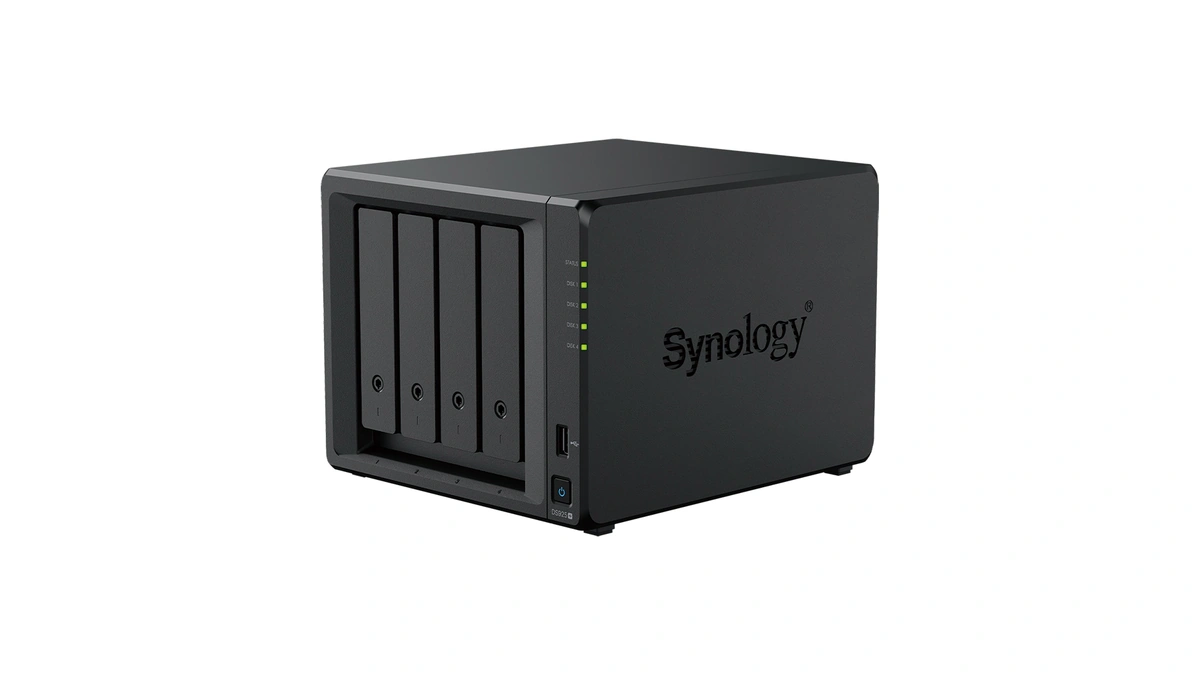
| Synology DS225+ | 2 | Intel Celeron J4125 | 2 GB, up to 6 GB | 1 x 2.5GbE, 1 x 1GbE | Btrfs, rated for 25 IP cameras |
| QNAP TS-464 | 4 | Intel Celeron N5095 | 8 GB, up to 16 GB | 2 x 2.5GbE | 2 x M.2, PCIe Gen 3 x2 slot |
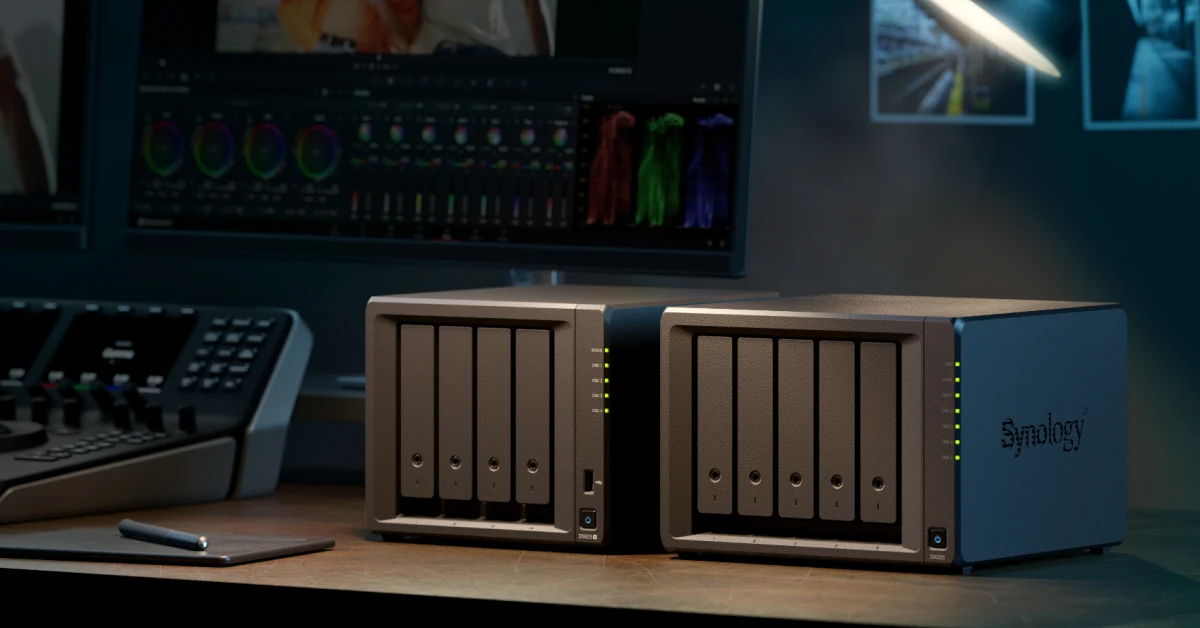
| Synology DS925+ | 4 (9 with DX525) | AMD Ryzen V1500B | 4 GB ECC, up to 32 GB | 2 x 2.5GbE | 2 x M.2 NVMe, rated for 40 IP cameras |
| UGREEN DXP4800 Plus | 4 | Intel Pentium Gold 8505, 5 cores | 8 GB DDR5, up to 64 GB | 1 x 10GbE, 1 x 2.5GbE | 2 x M.2 NVMe, Docker and virtual machines |
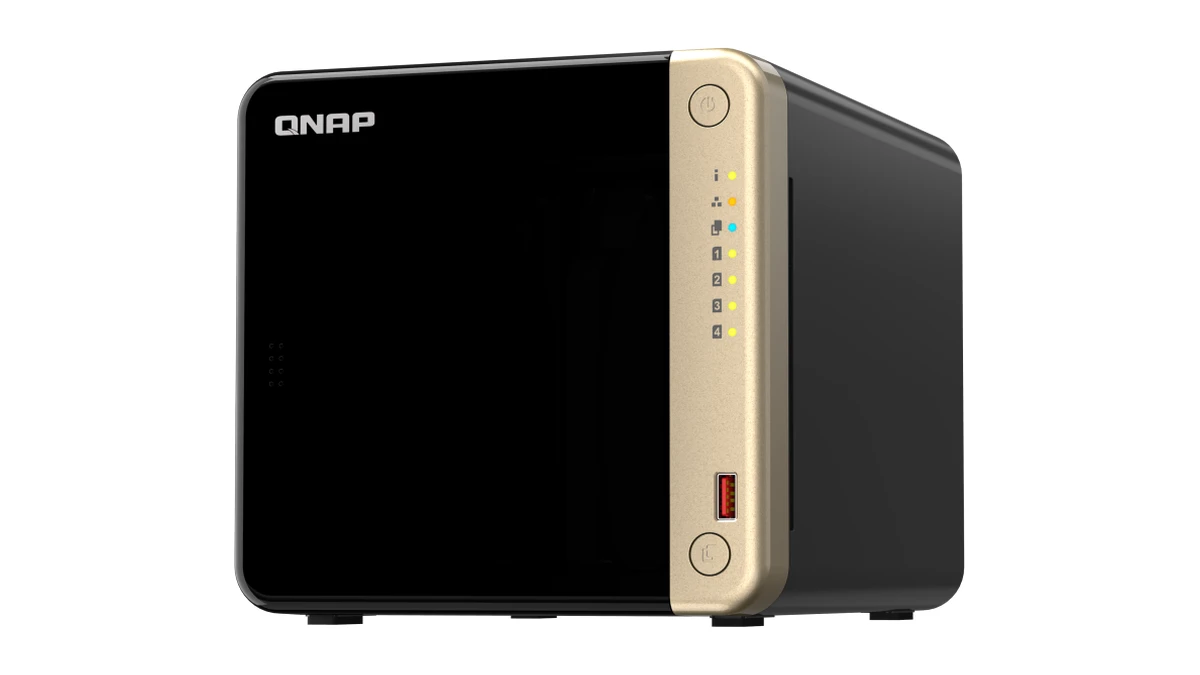
The two-bay boxes suit a household that wants one mirrored copy of photos and laptop backups. The TS-233 draws little power but has no room to grow its memory, while the DS225+ adds a 2.5GbE port and an Intel chip with a video engine. The four-bay models target small offices and heavier home use. QNAP gives the TS-464 a PCIe slot that it lists for optional 10GbE cards, and Synology quotes up to 522 MB/s read and 565 MB/s write for the DS925+ in its own testing. Synology backs both of its models with a 3-year hardware warranty, extendable to five years. UGREEN builds 10GbE into the DXP4800 Plus and covers it with a 2-year warranty.
Synology, QNAP, UGREEN or a DIY NAS
Buying a NAS also means picking its operating system, because the software decides the apps, the RAID options and the update path for years. Each of the main routes takes a different approach:
- Synology DSM. DiskStation Manager runs on every Synology box and brings SHR, Btrfs, Hyper Backup and Surveillance Station, as listed on the DS925+ spec page. Its drive rules differ by series, as the drives section below explains.
- QNAP QTS and QuTS hero. QNAP's TS-464 runs QTS by default and can switch to the ZFS-based QuTS hero.
- UGREEN UGOS Pro. UGREEN runs its own UGOS Pro on the NASync line and lists Docker and virtual machine support for the DXP4800 Plus.
- TrueNAS Community Edition. TrueNAS describes its Community Edition as free, open and ready to run on any x86 hardware. Its product page says it is built on OpenZFS, with snapshots, replication and RAID-Z.
- Unraid. Unraid is a paid, per-server license with a 30-day trial. Its array documentation lets drives of different sizes share one parity-protected array, as long as no data drive is larger than the parity drive, and its licensing FAQ caps the Starter tier at six attached storage devices.
A DIY build suits someone who already owns a spare PC and enjoys maintaining it. A prebuilt box suits everyone else, because the vendor handles the hardware, the updates and the warranty in one place.
Picking Drives for a NAS
The drives inside a NAS spin around the clock next to their neighbors, which is why drive makers sell separate NAS lines. Western Digital's two NAS families show the split:
- WD Red Plus. Western Digital rates the WD Red Plus for systems with up to 8 bays and 180 TB a year of workload, with CMR recording and a 3-year limited warranty.
- WD Red Pro. The WD Red Pro spins at 7200 RPM, carries a 550 TB a year rating and a 5-year limited warranty, and includes rotational vibration sensors that Western Digital pitches at larger, busier arrays.
- Matching sizes. Classic RAID sizes every drive to the smallest member, so mixed sizes waste space unless the NAS uses SHR or a similar scheme.
- SSDs. Flash makes sense for a cache or an all-flash pool, not bulk capacity. The SSD vs HDD comparison for game libraries covers the same cost-per-terabyte trade-off.
Synology buyers face one more check, because the company's drive policy changed with a software update. Synology says its 2025 DiskStation Plus models running DSM 7.3 accept non-validated third-party drives for storage pools, while M.2 pools and caches still require drives on its compatibility list. Its drive compatibility policy spells out the support level for each series, and its Value and J tables list non-validated hard drives as unsupported for new storage pools. A buyer planning an M.2 cache should pick the NVMe drive from that compatibility list before ordering.
Power and Noise for a Box That Never Sleeps
A NAS runs all day, so its power draw and fan noise matter more than on a computer that sleeps at night. The vendors publish these figures, each measured its own way:
| Model | Power while in use | Power with drives idle | Noise |
|---|---|---|---|
| QNAP TS-233 | 10.81 W typical | 3.43 W (disk standby) | Not listed |
| Synology DS225+ | 16.98 W | 6.08 W (drive hibernation) | 19.6 dB(A) |
| Synology DS925+ | 37.91 W | 12.33 W (drive hibernation) | 20.5 dB(A) |
| QNAP TS-464 | 40.536 W typical | 21.618 W (disk standby) | Not listed |
| UGREEN DXP4800 Plus | 42.36 W | 18.12 W (drive hibernation) | 29-34 dB (quiet mode) |
Synology measured noise at idle, 1 m from the front and rear of a unit filled with its own SATA drives, and UGREEN measured its power figures with a Seagate 2TB drive installed; UGREEN's noise range is for its quiet mode, so it is not directly comparable with Synology's idle figures. Bigger drives, more of them and busy apps raise the draw. Drive hibernation, or disk standby in QNAP's wording, cuts the listed draw by close to half or more on every model above, which adds up on a NAS that sits unused for hours at a time.
NAS Mistakes That Cost Data or Money
Most NAS regrets trace back to a handful of assumptions made at checkout:
- Treating RAID as a backup. RAID survives a dead drive, not a deleted folder or ransomware. The CISA #StopRansomware Guide calls for offline, encrypted backups that are tested regularly, because many ransomware variants hunt for reachable backups to delete or encrypt. Keep a second copy on an unplugged drive or in the cloud; the cloud data protection comparison of AWS, Azure and Google Cloud covers the options for that off-site copy.
- Opening the NAS to the internet. Synology's ransomware prevention advice says not to expose DSM to the internet unless necessary, to reach file services from outside through a VPN, and to turn on Auto Block, Account Protection and multi-factor authentication.
- Buying an SSD cache for movies. Synology's SSD cache documentation says caching helps re-read workloads such as mail servers and file services, and that large sequential jobs such as HD video streaming gain little.
- Ignoring the Mac backup protocol. Apple's list of Time Machine backup disks says Time Machine works with a NAS over SMB, and that AFP is not supported in macOS 27 or later. A NAS without SMB Time Machine support is the wrong buy for a Mac household.
- Keeping a very old NAS on a new PC. Microsoft says a clean install of Windows 11 contains no SMBv1 client or server, and connections to devices that support only SMBv1 fail with errors that call the protocol obsolete and unsafe. Replacing an SMB1-only box beats reinstalling the old protocol.
- Skipping encryption for cloud sync. Synology lists client-side encryption for syncing to Backblaze B2, Dropbox, Google Drive and Microsoft OneDrive on its DS925+ page. Turning it on keeps the cloud provider from reading the files, the same principle the end-to-end encryption explainer walks through.
How to Match a NAS to Your Needs
The right NAS follows from the heaviest job it will do, not from the longest feature list:
- Family photos and computer backups. A two-bay box in RAID 1 or SHR-1 holds one mirrored copy. Add an off-site copy and confirm SMB Time Machine support if anyone in the house uses a Mac.
- Media streaming. Choose an x86 chip with a hardware video engine if the media server will convert video for phones and TVs. Plex says its hardware-accelerated streaming uses Intel Quick Sync Video, requires a Plex Pass subscription on most devices, and needs a Jasper Lake or newer chip on a NAS to transcode reliably to HEVC. Intel lists the TS-464's Celeron N5095 as Jasper Lake with Quick Sync Video, and the DS225+'s J4125 as the older Gemini Lake Refresh. An ARM entry box is fine for direct playback of files the TV can already decode.
- Small office file server. Four bays with RAID 5 or SHR-1, dual 2.5GbE and expandable memory make a sensible floor. Our advice for five or more large drives is RAID 6 or SHR-2, for a second drive of tolerance during long rebuilds.
- Security cameras. Check the camera rating and the license count. Synology rates the DS225+ for 25 cameras and the DS925+ for 40 at 1080p, and its Surveillance Station includes two free licenses, with more sold separately.
- Growth. Buy one or two more drive bays than the drives on day one. Synology lists the DS925+ at nine bays with a DX525 expansion unit, an upgrade path a two-bay box does not offer.
In our view, the bay count and the backup plan matter more than the processor for most buyers. A four-bay NAS with mid-size drives and a separate off-site copy protects more data, for longer, than a faster two-bay box filled with the largest drives on the shelf.
Further reading
Frequently Asked Questions
What does NAS stand for?
NAS stands for network-attached storage, a storage device that connects to a home or office network instead of to a single computer. Every allowed PC, Mac, phone or TV on that network can open its shared folders at the same time. Synology, for example, lists SMB, AFP and NFS among the file protocols its DS225+ uses to share those folders.
Why use a NAS instead of a PC or a USB drive?
A NAS shares files with every device on the network and can survive a drive failure, while a USB drive serves one computer. With RAID 1, RAID 5 or SHR, a NAS keeps working when one drive dies. A spare PC can share folders too, but a NAS is built to run all day at low power. Synology rates its two-bay DS225+ at 16.98 W in use and 6.08 W with its drives hibernating.
Can a NAS work without internet?
Yes. File sharing, computer backups and streaming to TVs in the same house all run over the local network. Remote access and cloud sync need an internet connection; Synology's QuickConnect, for example, connects apps to the NAS via the internet. A NAS that stays offline still needs a separate off-site copy of its data.
Is a RAID array a backup?
No. RAID keeps a NAS running through a drive failure, but a file that is deleted or encrypted on the array is gone from the array as a whole, because RAID protects against failed hardware, not unwanted changes. CISA recommends offline, encrypted backups that are tested regularly, because ransomware often looks for reachable backups to delete or encrypt. Pair the NAS with a second copy on a USB drive kept unplugged or in a cloud account that the NAS cannot overwrite.
How many drive bays does a home NAS need?
Two bays cover a mirrored copy of photos and computer backups; four bays are the safer buy if storage needs will grow. A two-bay unit is limited to mirroring, so its usable space equals one drive. A four-bay unit can start with two drives and add more later, which also opens up RAID 5 or SHR with better capacity efficiency.
Can I use any hard drive in a Synology NAS?
On Synology's recent Plus models, yes for hard drives and 2.5-inch SATA SSDs, but not for M.2 cache or storage pools. Synology still recommends drives from its compatibility list, and M.2 NVMe pools and caches require listed drives. Synology's business-class series keep stricter rules, so check the compatibility page for the exact model.