A WordPress agency workflow is the repeatable process that an agency uses to build, test, release and maintain client sites, from the first staging copy to the access a client keeps after launch. With five client sites, an agency can run on habit and memory. At fifty, the same habits produce overwritten orders, plugins updated on the wrong site and clients holding admin rights nobody remembers granting. The fixes are mostly structural: where changes are made, how they reach production and who is allowed to touch what.
Three Environments Before Anything Goes Live
A WordPress agency workflow that holds up at scale rests on five habits: separate local, staging and production copies of every site, pushes that never overwrite live orders, Git for code, hosting and WordPress roles that limit who can change what, and a tested update routine. The sections below take them in turn and end with a host checklist.
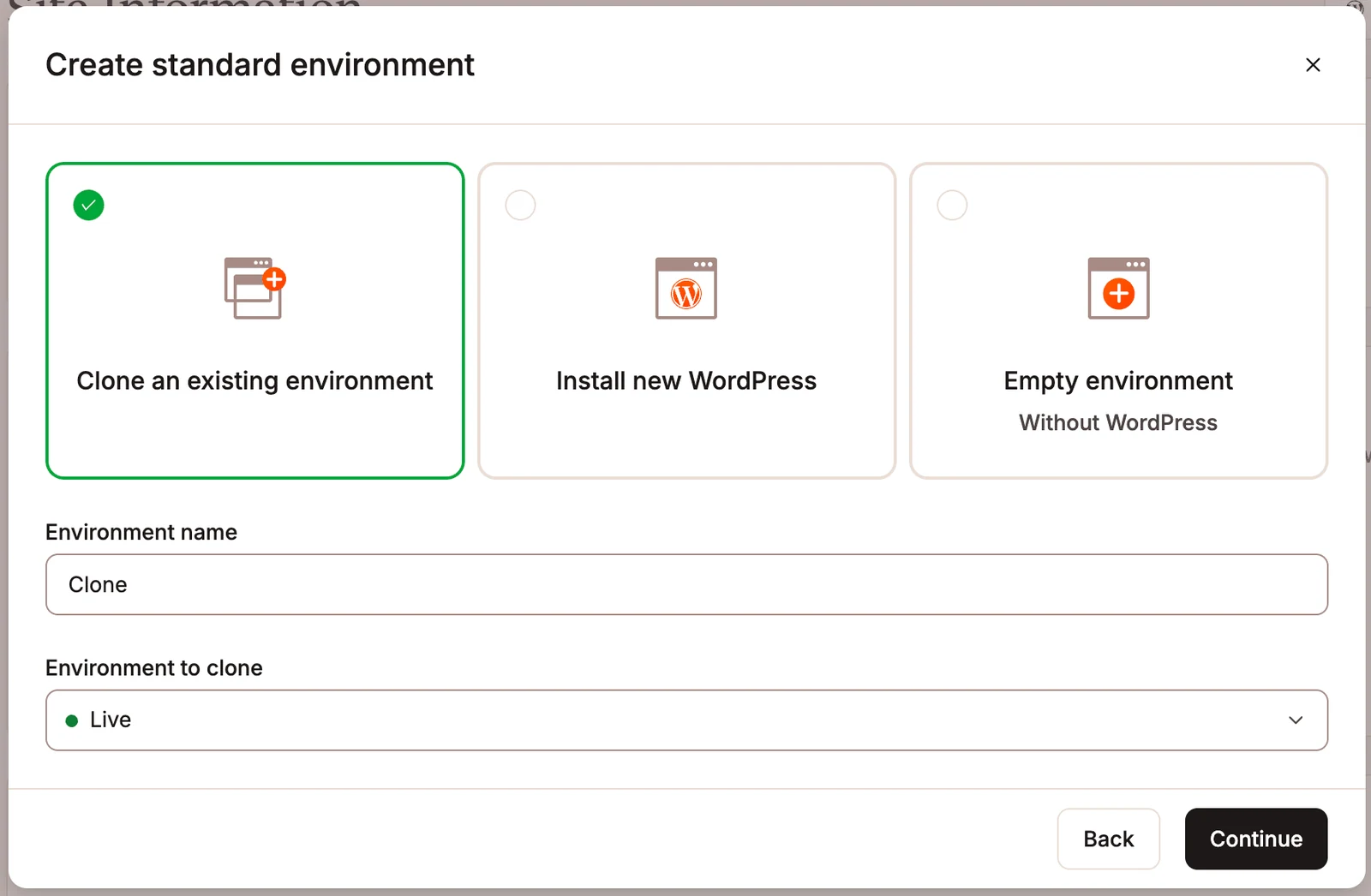
The first habit is separating where work happens from where visitors are. WordPress core recognizes four environment types through the wp_get_environment_type function: local, development, staging and production. The type is set with the WP_ENVIRONMENT_TYPE constant, defaults to production when nothing is set, and WordPress asks hosts that offer staging to label those copies as staging.
The label has practical effects. When the type is development, WordPress turns on WP_DEBUG if wp-config.php leaves it undefined, and plugin authors can read the value to change behavior per environment. An agency that sets the type on every copy gives its own code a reliable way to know where it is running.
A practical setup maps those types onto three working copies of each client site:
| Environment | What happens there | Who works in it |
|---|---|---|
| Local or development | New features, theme code, plugin trials | Developers only |
| Staging site | Updates, client review, final checks against real content | Developers, project leads, client reviewers |
| Production | The live site customers use | Content editors; code arrives only by push or deploy |
Managed hosts build this structure in. Entry-level shared plans often skip it, one of the practical differences between hosting types. WP Engine says each site on its platform can hold up to three environments, Production, Staging and Development, which run as separate WordPress instances, per its sites and environments documentation. Kinsta gives every WordPress site a standard staging environment and sells up to five premium ones per site, each with 12 CPUs, 8 GB of memory and the live site's PHP thread count, at $20/month each according to its add-ons documentation.
A staging copy is a workspace, not a backup server. Kinsta's staging documentation warns that its staging environments are for development and testing only and may go to sleep after 24 hours of inactivity, so a client should never be pointed at one as a temporary live site.
Pushing From Staging to Live Without Losing Orders
A WordPress agency workflow is only as safe as its push from staging to live. The live database keeps changing while staging sits still: orders, form entries, comments and new users arrive every hour. Pushing a whole staging database over production erases all of it.
Kinsta spells out the risk in its push environments documentation: MyKinsta does not tell new orders from old ones, so pushing all files and the database overwrites the live WooCommerce store exactly as staging is. Its selective push can send only files, only the database, specific folders or specific tables, and Kinsta suggests three safer routes for stores:
- Files only: push themes and plugins and leave the live database untouched.
- Selected tables: push database tables but exclude the WooCommerce tables.
- Sync first: copy the live database to staging, make the change, then push straight away.
Kinsta adds that redirects, PHP and Nginx settings travel with every push, even a selective one, and overwrite the destination. Kinsta also warns that a database push discards any changes made to the live database since the staging copy was created, including comments, new content and purchases.
When a database does move between environments, the domain inside it has to change too. The WP-CLI search-replace command handles PHP serialized data intelligently, and its --dry-run flag reports every change before saving anything. The walkthrough on migrating WordPress without downtime covers the same mechanics for moving a client site between hosts.
Version Control and Deploys With Git
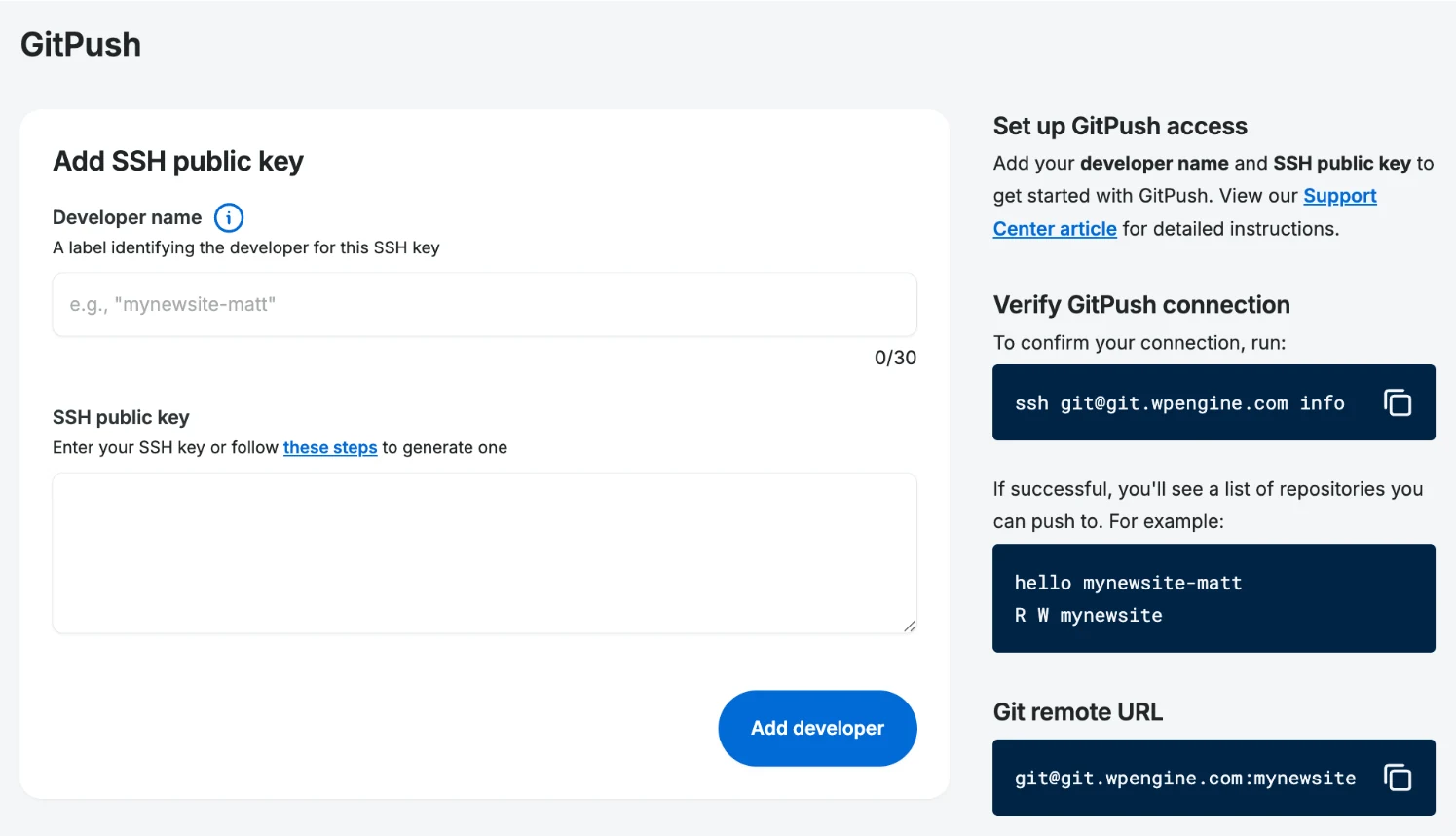
A WordPress agency workflow needs a record of every code change, which is the job of version control. WP Engine's Git documentation describes Git as a system that records changes to a set of files over time so that a specific version can be reproduced later. Its GitPush tool sends code from a developer's machine to a WP Engine environment over SSH, with the developer's key added to each environment separately. Teams choosing a branching model for their Git repositories can compare Gitflow, GitHub Flow and GitLab Flow.
Work starts on a local copy. The WordPress project's wp-env tool sets up a local WordPress environment for building and testing plugins and themes without configuration. It runs on Docker by default, serves the site at localhost:8888 and offers an experimental WordPress Playground runtime that needs no Docker at all. From there, a simple rule of thumb keeps code and content apart:
- Code moves up: theme, custom plugin and configuration changes travel from local to staging to production through Git, so every release has a commit behind it.
- Content moves down: copy the live database to staging or local for testing instead of pushing a database upward. WP Engine notes that pushing a database file through Git does not import it; the import is a separate step over SSH.
- Backups sit outside Git: WP Engine says restoring a backup does not update the Git repository, so the backup has to be downloaded, merged with the local files, committed and pushed again.
- Decide where plugin updates happen: the WP-CLI plugin update command in the current stable release updates a plugin committed to Git like any other plugin (skipping version-controlled plugins unless
--include-vcsis passed is still a nightly-build feature), so exclude committed plugins with--excludeand update them in the repository.
The same split explains the push warnings above. Code can be redeployed from Git at any time, while production data such as orders and comments exists nowhere else, which is why the safer pushes above move it only downward or in selected tables.
WordPress Multisite or Separate Installs
WordPress Multisite is the first structural choice in a WordPress agency workflow, and the official documentation is cautious about it. The Before You Create A Network page describes network sites as separate, much like separate blogs on WordPress.com, and says a network might not be the best solution for sites that are strongly interconnected, share data or share users.
The bigger difference for agencies is control. In a network, the Super Admin manages plugins and themes for every site, and the Network Admin documentation notes that network activating a plugin makes it active on every site at once. The Roles and Capabilities reference adds that on Multisite only the Super Admin can install, update or delete plugins and themes, or update core; a site Administrator cannot.
| Question | WordPress Multisite network | Separate installs |
|---|---|---|
| Where updates run | Once, from Network Admin, for all sites | Per site, or through a host's bulk tools |
| Client admin rights | Site Administrator cannot install plugins or themes | A client Administrator can install anything |
| Blast radius of a bad plugin | Every site where it is network active | One site |
| Staging pushes | Kinsta warns database pushes may or may not work | Per-site push tools, within each host's documented caveats |
| Fits best | Many similar sites one team controls, such as franchise or campus sites | Independent client sites with different stacks and owners |
Multisite also changes routine tooling. WP-CLI's search-replace touches only the current site's tables on a network unless --network is passed, a detail that is easy to miss during a migration. Setup carries constraints too: the Before You Create A Network page says a sub-directory network cannot be created on an existing installation more than a month old because of permalink conflicts, and it suggests a plugin for mapping separate client domains. As a rule of thumb, separate installs plus good tooling suit an agency with unrelated clients, and multisite suits a network where one organization owns every site.
Client Access Without Handing Over the Keys
Client site management in a WordPress agency workflow runs on two separate permission systems: the hosting dashboard and WordPress itself. Confusing the two is how a contractor ends up with far more access than the job needs.
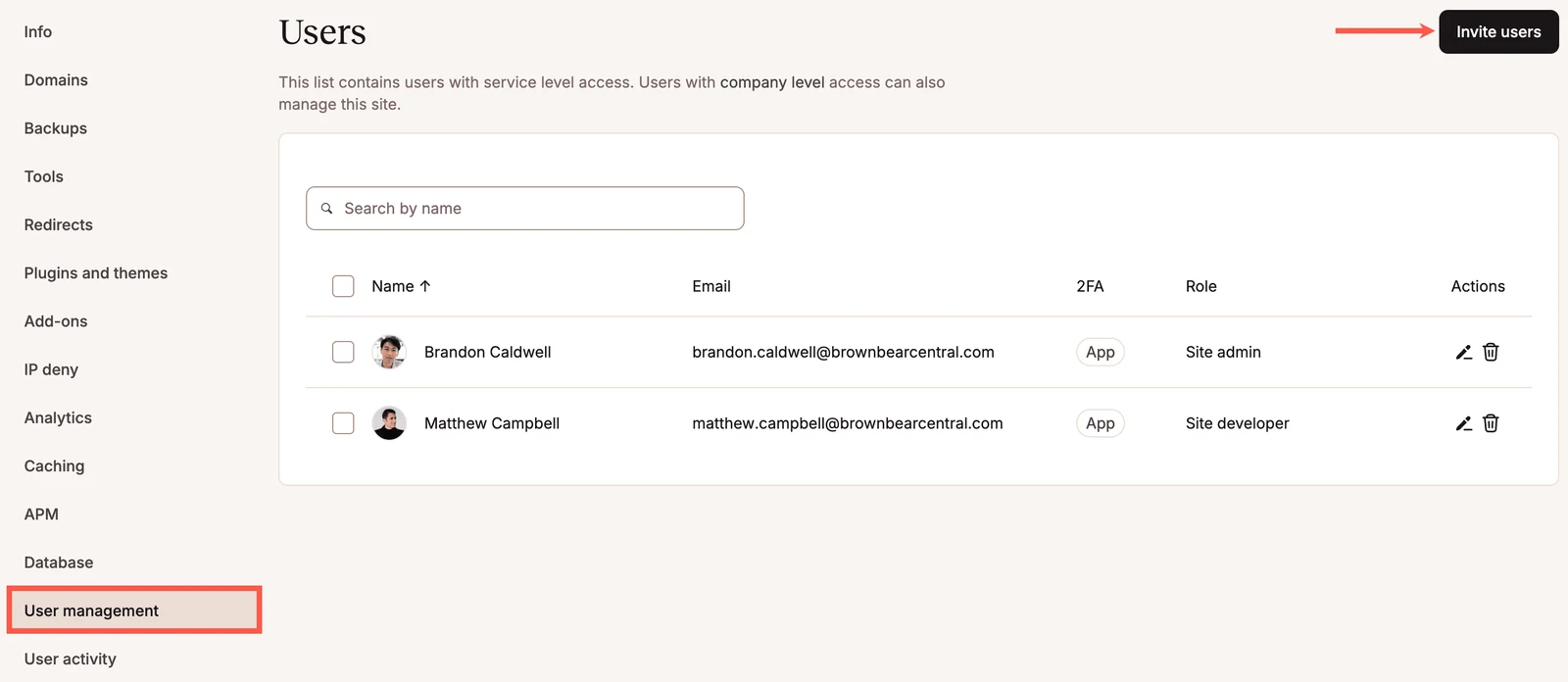
At the hosting layer, Kinsta's user management documentation splits access into company roles and site roles:
- Company Administrator: full control of company data and every site, including migrations.
- Company Developer: manages all sites and DNS but sees no billing details.
- Company Billing: invoices and company details only, with no site access.
- Site Administrator: full control of one site's environments, without the right to remove it from the company.
- Site Developer: works only in staging environments and cannot push them to live.
For contractors, consider the Site Developer role, since every change they make has to pass through someone who can push. Inside WordPress, the roles reference lists Super Admin, Administrator, Editor, Author, Contributor and Subscriber, and an Editor can publish and manage everyone's posts without touching plugins. For day-to-day content work, Editor access is often enough; whether a client also gets an Administrator account belongs in the contract, not in a late-night support ticket.
Handover is the last access question. WP Engine lets an agency build a client site as a transferable site that does not count toward the agency plan's site limit, stays password protected and is exempt from the server cache, per its transferable sites documentation. At launch the agency sends a transfer code, valid for 30 days, and the client accepts it on their own WP Engine plan. The same page notes that a newer self-serve process can transfer any site, which makes transferable sites unnecessary, and that they will be deprecated at some point.
Updates at Agency Scale
Plugin and theme updates are the most repeated task in any WordPress agency workflow, and the one most likely to break a site quietly. On a network, the Super Admin updates core, themes and plugins once from the Network Admin updates screen and then upgrades every site. Across separate installs, the host's tooling has to fill the gap. WP Engine's Sites page offers bulk updates for plugins and themes, but only on its Flywheel Growth Suite, Agency Client Hosting, Premium Agency and Premier plans.
WP-CLI makes that work scriptable across many sites. The wp plugin update command can preview changes with --dry-run, limit them to minor or patch releases with --minor or --patch, and hold a plugin back with --exclude. The WP-CLI handbook's guide to running commands remotely adds aliases such as @dev or @prod, registered in a wp-cli.yml file and reached over SSH, and alias groups that run one command against several installs at once.
Whatever the tool, the routine that keeps update days uneventful looks like this:
- Refresh staging from live. Test updates against current content and settings, not a months-old copy.
- Update on the staging site first. Apply core, theme and plugin updates there, one batch per client.
- Check the money paths. Run through checkout, contact forms and logins, the parts clients notice first when they fail.
- Take a fresh backup of production. A restore point from minutes ago beats the nightly one.
- Push files only, or repeat the updates on live. Leave the live database alone unless the update needs a schema change.
- Log what changed. A short per-client record turns the next incident from guesswork into a lookup.
Matching the Workflow to a Host
A WordPress agency workflow ends up shaped by what the host can do, so the evaluation list follows from the sections above:
- How many staging or development environments each site gets, and whether they match production resources.
- Whether the push from staging to live is selective down to files and individual tables.
- Whether hosting roles can limit a contractor to staging.
- Whether sites can be built on the agency account and transferred to the client.
- Whether bulk updates are included or locked to higher plans.
- Whether the plan includes SSH access for WP-CLI and a Git deploy path.
- How the host supports WordPress Multisite, if the agency runs networks.
The roundup of WordPress hosting for agencies and freelancers compares providers for this kind of work, and the Cloudways vs Kinsta vs WP Engine comparison sets three managed platforms side by side. Agencies that resell hosting should also model renewal and per-site costs, which the breakdown of managed WordPress hosting pricing covers. The best workflow is the one a new hire can follow on day one without asking which button overwrites the client's orders.
Further reading
Frequently Asked Questions
Should an agency put all client sites on one WordPress Multisite network?
Usually not when the clients are unrelated, because one network shares plugins, themes and updates across every site. A network-activated plugin runs everywhere at once, and site Administrators lose the right to install plugins or themes. Multisite fits better when one organization owns all the sites, such as a franchise or a university.
Can I push a WooCommerce staging site to live without losing orders?
Yes, as long as the push does not overwrite the live database. Kinsta's documentation suggests pushing files only, pushing selected tables while excluding the WooCommerce tables, or syncing the live database to staging right before the push. A full database push replaces every order placed since the staging copy was made.
Should an agency keep client WordPress sites in Git?
Yes for the code an agency writes, such as themes, custom plugins and configuration, because Git records every change and lets a version be reproduced later. Keep the live database and uploads out of the deploy path. WP Engine notes that a database pushed through Git is not imported automatically, and that restoring a backup does not update the repository.
Should clients get Administrator access to their own WordPress site?
It depends on the contract, so decide it before launch rather than during a support request. An Editor can publish and manage all content without touching plugins, while a single-site Administrator can install plugins and manage users. Whatever you choose, give each person a named account instead of sharing one login.
How do I hand a finished site over to a client?
Use the host's transfer feature where one exists, and fall back to a migration where it does not. WP Engine lets agencies build transferable sites that sit outside the plan's site limit and send the client a transfer code that stays valid for 30 days. The client accepts it on their own WP Engine plan. WP Engine adds that a newer self-serve process can transfer any site and that transferable sites will be deprecated at some point.
Can a staging site stand in as a temporary live site?
No, staging environments are built for testing and are not meant to serve real visitors. Kinsta warns that its staging environments may go to sleep after 24 hours of inactivity and says they should only be used for development and testing. If a client needs a site live quickly, launch a production environment instead.