WooCommerce performance is the speed and stability that a store keeps under load, measured in how fast pages, cart actions and checkout respond as products, customers and orders grow. A small shop rarely notices the limits. A store running a flash sale, importing ten thousand products or carrying years of orders runs into them: requests that cannot be cached, a database crowded with orders and plugins nobody remembers installing.
Where WooCommerce Slows Down
Improving WooCommerce performance comes down to a short list of fixes, most of them aimed at requests that cannot be cached: a plan with enough PHP threads, page caching for everything except cart, checkout and account pages, a persistent object cache, order storage in dedicated tables, fewer plugins on each request and a load test before every big sale.
The causes behind it trace back to four factors, which WooCommerce itself names in its scaling FAQ. It defines scalability as growing a store's products, customers and orders without hurting performance, and lists the factors that decide it:
- Traffic: WooCommerce calls traffic distribution the biggest influence on store performance. WooCommerce's example is a big sale on one product, which concentrates all traffic on that product page and the cart, unlike the same visitors spread across a catalog.
- WooCommerce code: the core plugin itself, which the team says it keeps optimizing for scale.
- Other system code: the theme and every plugin running alongside WooCommerce, where unoptimized code has to be found and fixed.
- Server hardware: the hosting package, which WooCommerce says should match the traffic the store expects.
The common thread is the uncached request. A product page can be served from a cache, but a cart, a checkout or a logged-in account page has to be built by PHP for each shopper. Kinsta explains the mechanics in its PHP documentation: each PHP thread, previously called a PHP worker, handles one request at a time, so two threads can serve only two uncached requests at once. When every thread is busy, new requests wait, and slow code can push visitors into timeouts and 503 or 504 errors.
That is why a store can feel fast while browsing and still stall at checkout during a promotion. A practical way to frame the work: make each uncached request cheaper, and make sure there are enough PHP threads to handle the ones that remain.
How Fast a WooCommerce Store Should Be
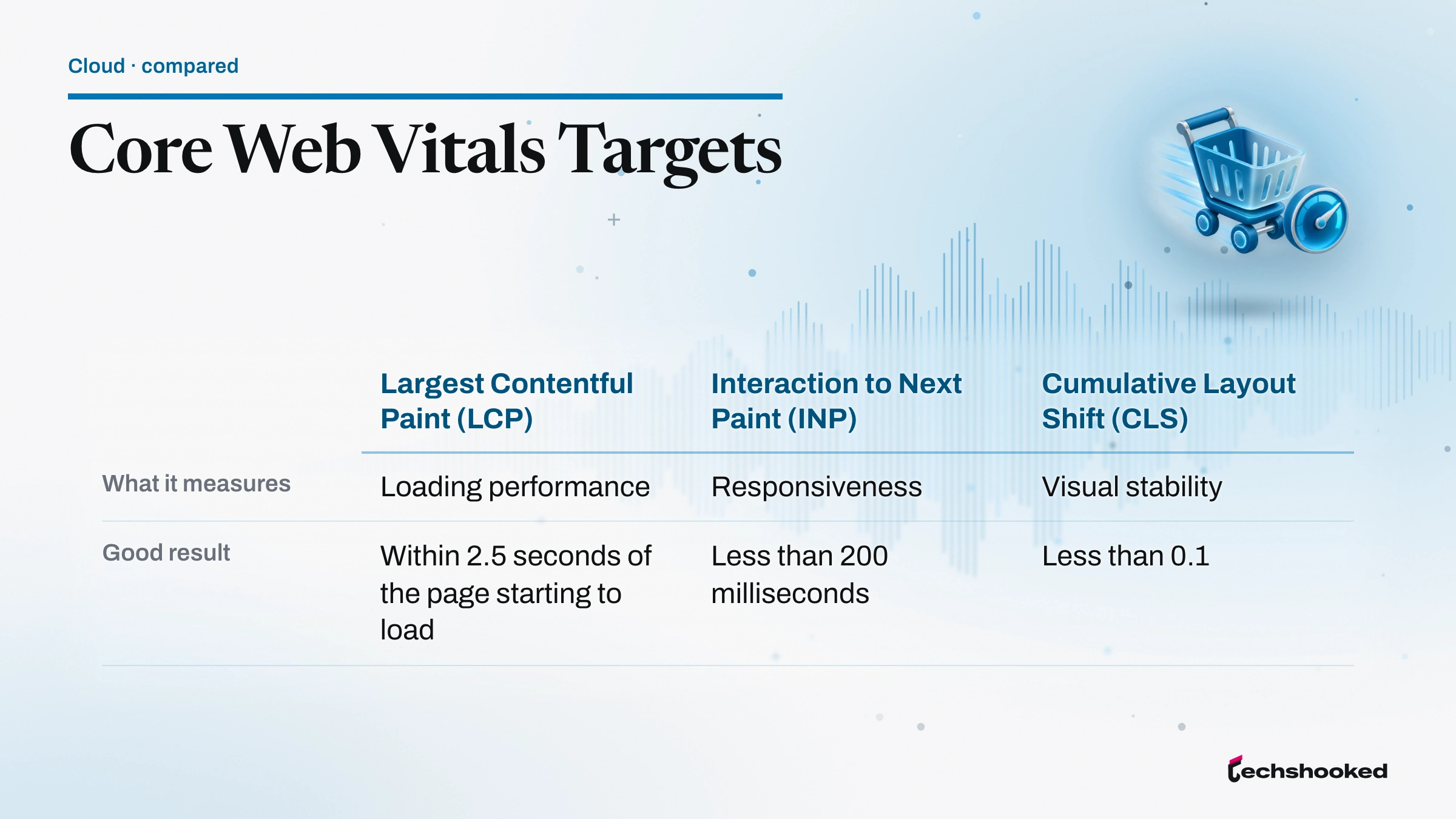
WooCommerce performance needs a target before it needs a fix, and Google's Core Web Vitals give a public one. Google Search Central describes them as metrics that measure real-world user experience for loading, interactivity and visual stability, and its Core Web Vitals page sets these marks for a good experience:
| Metric | What it measures | Good result |
|---|---|---|
| Largest Contentful Paint (LCP) | Loading performance | Within 2.5 seconds of the page starting to load |
| Interaction to Next Paint (INP) | Responsiveness | Less than 200 milliseconds |
| Cumulative Layout Shift (CLS) | Visual stability | Less than 0.1 |
Google says good Core Web Vitals, along with other page experience aspects, align with what its core ranking systems seek to reward, so page speed matters for search as well as for shoppers. The Core Web Vitals report in Search Console shows how a site's pages perform for real visitors. For lab tests, WooCommerce's optimization documentation points to Google PageSpeed Insights, GTmetrix and WebPageTest, and its performance best practices recommend that extension developers reach a Chrome Lighthouse performance score of 90 or above on a simple Woo site.
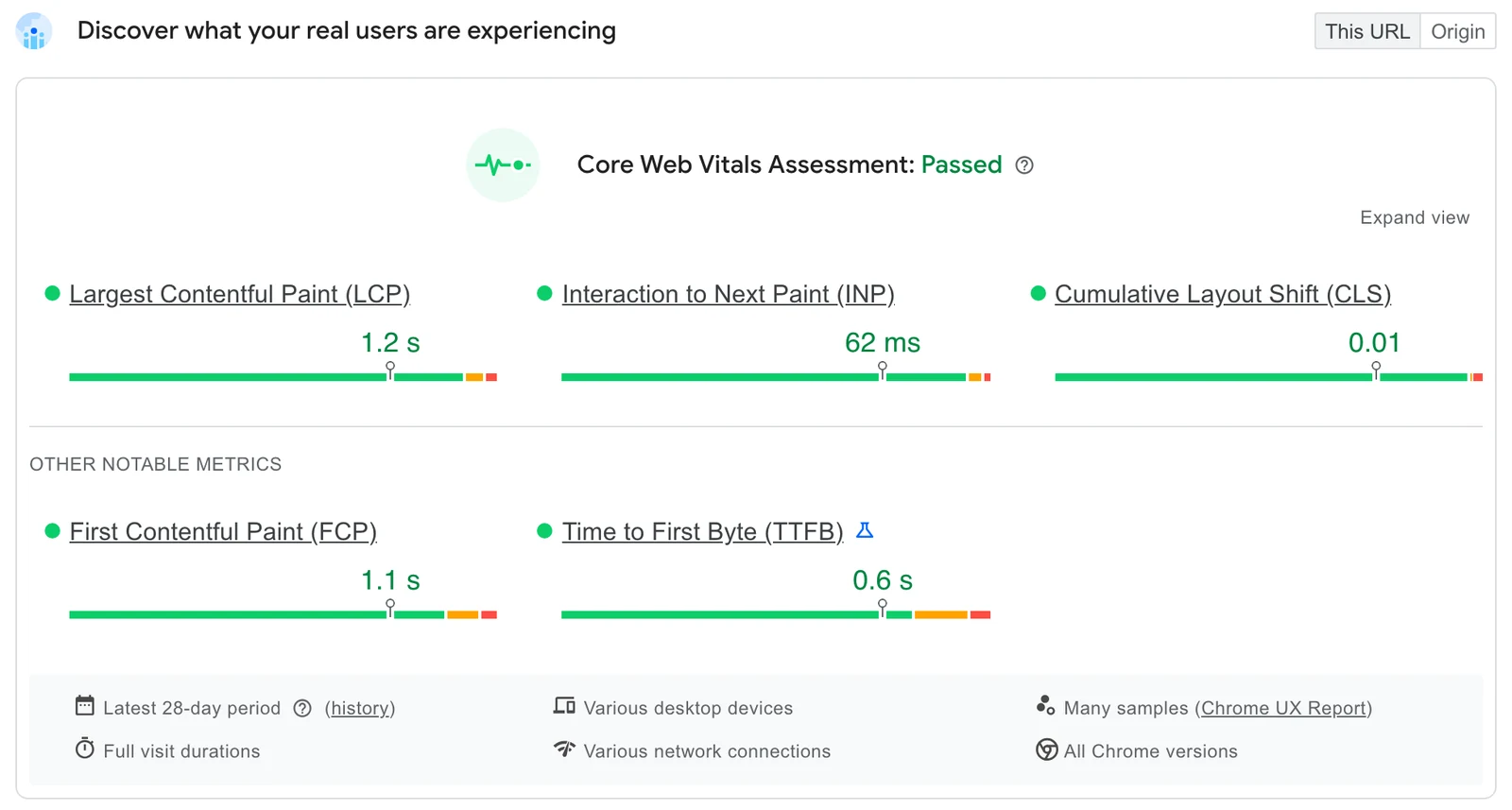
Test more than the homepage. A product page, a category page with filters, the cart and the checkout behave differently, and the last two cannot lean on a page cache. If product pages pass and checkout lags, look at PHP threads, caching rules and the database before images and scripts; the next sections cover each one.
Start With a Host That Fits the Store
WooCommerce performance starts with a server that meets the platform's own baseline. The WooCommerce server requirements page asks hosts to support:
- WordPress 6.9 or greater
- PHP 8.3 or greater, tested up to PHP 8.4
- MySQL 8.0 or greater, or MariaDB 10.6 or greater
- HTTPS support
- A WordPress memory limit of 256 MB or greater
WooCommerce says older environments with PHP 7.4 and MySQL 5.6 still work, per the same requirements page, but those versions have reached end of life and may expose a site to security vulnerabilities. Apache or Nginx are the recommended web servers.
Beyond the baseline, check the plan's concurrency limits. Ask a prospective host how many PHP threads a plan includes, what memory limit each one gets and whether a persistent object cache such as Redis comes with it. The explainer on TTFB, PHP workers and caching translates those plan specs into what shoppers feel, and the roundup of WooCommerce hosting for growing stores sets out which providers sell plans built around these limits.
Cache Everything Except the Cart
Page caching is central to WooCommerce performance, because a cached page skips PHP and the database entirely. WooCommerce's performance optimization documentation suggests server-level caching through the host or tools such as Varnish, NGINX FastCGI Cache or Redis, or a plugin such as WP Rocket, W3 Total Cache or WP Super Cache. Cart and checkout are the exception: they must stay dynamic.
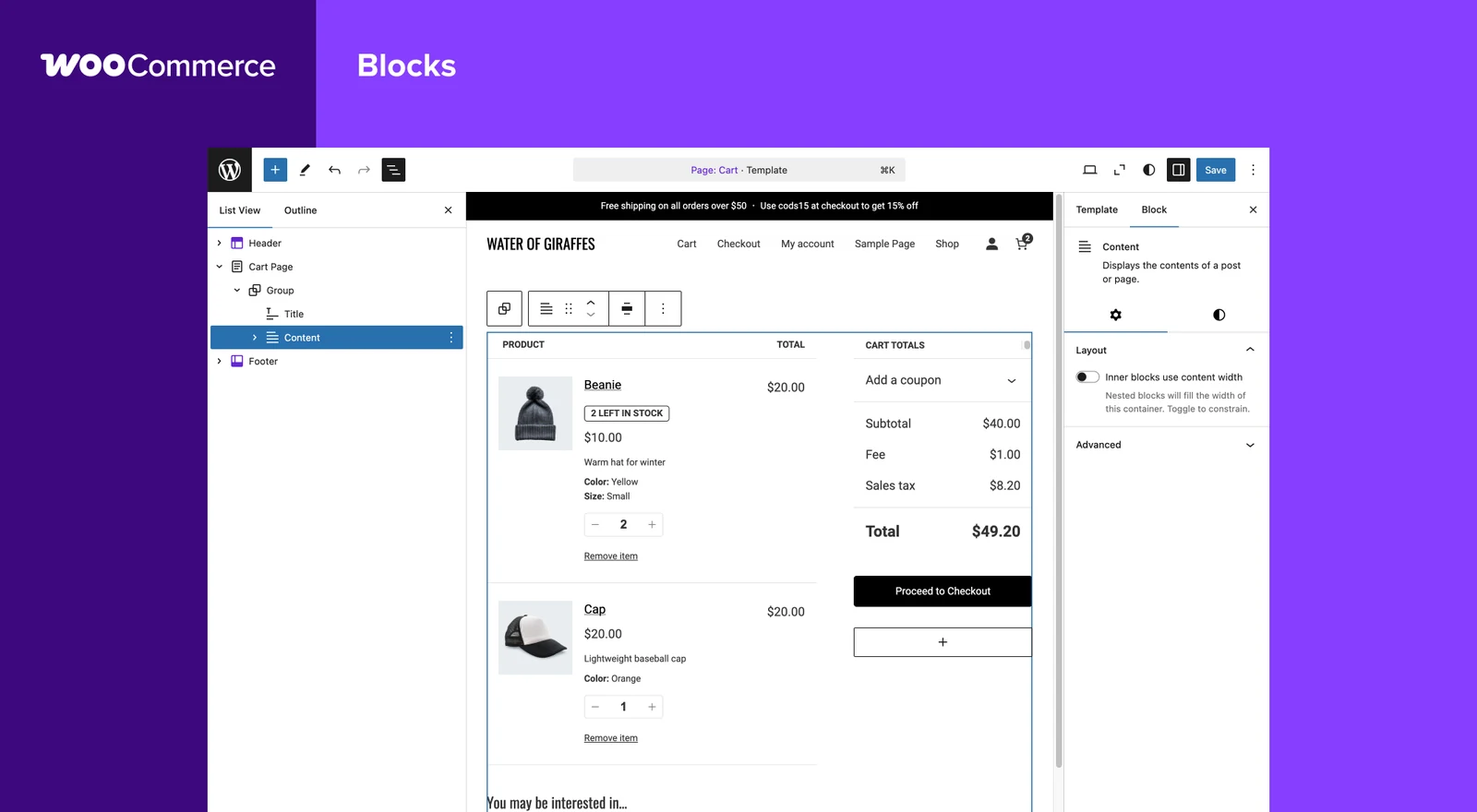
WooCommerce's caching plugin documentation lists the Cart, Checkout and My Account pages as ones that must never be cached, since they show data for one customer. It also names the cookies a cache should respect:
| Cookie | Lifetime | What it does |
|---|---|---|
| woocommerce_cart_hash | Session | Tells WooCommerce when cart contents change |
| woocommerce_items_in_cart | Session | Tells WooCommerce when cart contents change |
| wp_woocommerce_session_ | 2 days | Links each customer to their cart data in the database |
| woocommerce_recently_viewed | Session | Powers the Recently Viewed Products widget |
WooCommerce adds that WP Super Cache skips cart and checkout pages by default, and its sample Varnish rules pass cart, account, checkout and add-to-cart requests straight to PHP. WooCommerce's stated reason is that these pages display information specific to the current customer and their cart.
Page caching cannot help the uncached requests, so the next layer is a persistent object cache. The WordPress object cache reference notes that the built-in cache is non-persistent: it lives in memory for one request only unless a persistent caching plugin is installed. Redis and Memcached plugins provide a persistent backend, so cached data is kept across requests.
Static files belong on a content delivery network. WooCommerce suggests providers such as Cloudflare, Fastly or Amazon CloudFront for images, CSS and JavaScript, and the Cloudflare setup walkthrough covers the settings that matter for a WordPress site.
Keep the Database Lean as Orders Pile Up
WooCommerce performance at high order volume depends on how orders are stored. Before version 8.2, WooCommerce kept orders in the WordPress _posts and _postmeta tables, shared with every page and post on the site. High-Performance Order Storage (HPOS) moves them into four dedicated tables with their own indexes, which WooCommerce says means fewer read and write operations and fewer busy tables. HPOS is on by default for new installations from WooCommerce 8.2 onward.
Older stores have to switch on high-performance order storage themselves. WooCommerce documents the path:
- Make sure extensions that use custom post types, such as Woo Subscriptions or WooCommerce Bookings, are active before migrating, to avoid data discrepancies.
- Under WooCommerce, Settings, Advanced, Features, enable compatibility mode so orders sync between the posts table and the new order tables.
- Let the background job backfill orders, which runs 25 orders at a time, or run
wp wc cot syncfrom WP-CLI. - Switch order data storage to HPOS once both tables are in sync, and keep compatibility mode on for a while in case you need to revert.
Analytics is the other database load that grows with orders. WooCommerce 10.5 introduced Scheduled Imports, which process analytics data every 12 hours in batches of 100 orders according to the WooCommerce 10.5 release post. New stores get it automatically; existing stores have to opt in under Analytics settings.
Routine cleanup still pays off. WooCommerce's optimization documentation recommends deleting spam comments, post revisions and expired transients, then optimizing tables with a plugin such as WP-Optimize or Advanced Database Cleaner. Take a backup first; a cleanup tool that removes the wrong rows can do more harm than a slow query.
Trim Plugins, Scripts and Background Jobs
WooCommerce performance suffers most from code that runs on requests that never needed it. WooCommerce.com measured this on its own site, as described in a developer post on selective plugin loading: on an uncached request, unrelated plugins can account for 10 to 20% of page generation time. Removing payment gateways and a few unrelated extensions from product pages gave roughly a 10% improvement there.
The same team treats cart, checkout, account, cron, webhooks and payment callbacks with extra caution, because those requests touch money and customer data. The same habit, applied to a smaller store, looks like this:
- Audit plugins: WooCommerce suggests Query Monitor or WP Hive to see which plugins add database queries and load time, then removing or replacing the worst.
- Lighten the front end: compress images, enable lazy loading and serve responsive sizes, and defer non-critical JavaScript.
- Move scheduled tasks off page loads: WP-Cron checks for due tasks on every page load, and the WordPress handbook shows how to hook WP-Cron into the system task scheduler and disable the page-load trigger, so scheduled work stops riding on shopper requests.
- Choose a lean theme: WooCommerce recommends a lightweight theme designed for the plugin and built on sound coding practices, since the theme loads on every page.
Test Before Traffic Arrives
WooCommerce performance work only counts if it holds up under real load, so measurement comes before and after every change. WooCommerce's scaling FAQ offers a practical server metric: average add-to-cart calls per minute are a good indication of the demands on the server. For page-level detail it points to Chrome DevTools, Google PageSpeed tools and, for detailed information, premium services such as New Relic.
A workable testing routine before a big sale looks like this:
- Copy production to a staging site. WooCommerce recommends a staging server and version control once a store reaches enterprise scale, rather than one-click updates on the live shop.
- Record a baseline. Note add-to-cart calls per minute at a normal peak, checkout response time and how often the plan hits its PHP thread limit.
- Run load testing against the staging site. Concentrate simulated shoppers on one product and the checkout, since WooCommerce names traffic distribution as the biggest influence on store performance.
- Trial new features there first. WooCommerce 10.5 added experimental REST API caching and product object caching, per its release notes; experimental features belong on staging until they prove stable for your plugin mix.
- Repeat after each change. Change one layer at a time so a regression points to a single cause.
WooCommerce says it has seen shops with more than 100,000 products handling thousands of transactions per minute, and notes that those stores had strong hosting support and their own developer teams. That is the honest ceiling: at that scale the work involves dedicated hosting support and developers, and it extends into infrastructure design, the territory of cloud architecture for scalable online stores. Owners who would rather not run that stack at all can weigh a hosted platform using the Shopify vs WooCommerce decision framework.
Further reading
Frequently Asked Questions
How do I speed up a slow WooCommerce store?
Measure first, then fix the slowest layer. Test product, cart and checkout pages separately against Google's Core Web Vitals marks, such as an LCP within 2.5 seconds. WooCommerce's optimization documentation then lists page caching that leaves cart and checkout uncached, image compression and lazy loading, minified code, a CDN, database cleanup and a lightweight theme.
Should I cache WooCommerce cart and checkout pages?
No, the Cart, Checkout and My Account pages must stay uncached because they show data for one customer. WooCommerce also lists the cart and session cookies a cache should respect, such as woocommerce_items_in_cart and wp_woocommerce_session_.
Do I need to switch an older store to HPOS?
If the store was created before version 8.2, it is worth switching once your extensions support it, because HPOS moves orders into dedicated, indexed tables. New installations get it by default. Compatibility mode keeps orders synced to the old posts table, so you can revert if there are any issues.
How much traffic can WooCommerce handle?
There is no fixed ceiling; capacity depends on traffic distribution, hosting and code quality. WooCommerce says it has seen stores with more than 100,000 products handling thousands of transactions per minute. Those stores had strong hosting support and their own developer teams.
How many PHP workers does a WooCommerce store need?
Enough to cover the uncached requests that arrive at the same moment. Each PHP thread handles one request at a time, so a sale that sends many shoppers to checkout at once needs more threads than a quiet week. As a rule of thumb, if the plan keeps hitting its thread limit, cut uncached requests with better caching before paying for more threads.
Why is my WooCommerce admin slow when the storefront is fast?
Admin screens and analytics work on live order data, so they cannot hide behind the page cache that speeds up the storefront. WooCommerce 10.5 moved analytics for new stores to batched Scheduled Imports to cut server load, and existing stores can opt in under Analytics settings. The same release reduced unnecessary script loading on admin pages, and HPOS reduces read and write load on order tables.