OBS Studio is the open-source broadcasting application that captures, encodes, and transmits live video to streaming platforms without licensing fees or watermarks.
Two commercial alternatives compete for the same audience: Streamlabs Desktop, which layers a beginner-friendly overlay toolkit on top of the Open Broadcaster Software core, and XSplit Broadcaster, a Windows-exclusive tool built around a polished interface and paid feature tiers. Each trades off CPU usage, setup complexity, and pricing differently, and the right pick depends on your hardware, platform targets, and how much configuration you are willing to manage.
What OBS Studio Does
Open Broadcaster Software gives streamers a modular scene composition engine where each scene holds any mix of sources: game capture, browser sources, video capture devices, image overlays, and audio inputs. Transitions between scenes are configurable. The encoder settings panel exposes software encoders (x264, x265) and hardware encoding paths side by side, so a streamer with an Nvidia GPU can switch from CPU-heavy x264 to NVENC (Nvidia's hardware encoder) or AMF (AMD's equivalent) in the same settings dialog.
OBS runs on Windows, macOS, and Linux, which makes it the only cross-platform option in this comparison. The plugin ecosystem is extensive: virtual camera support, advanced audio mixing via VST plugins, RTMP-to-multicast relay tools, and scene-specific audio filters are all available through community-maintained extensions.
Core strengths at a glance:
- Zero cost, no watermark, no feature gating by plan tier
- Full scene composition with nested scenes and source groups
- Software and hardware encoding options in one interface
- Active plugin library covering virtual camera, replay buffer, and audio mixing
- Cross-platform: Windows, macOS, and Linux supported
- Direct RTMP output to any streaming platform, including custom RTMP endpoints
What Streamlabs Desktop Does

Streamlabs Desktop targets streamers who want alert overlays, donation tools, and on-stream widget management without sourcing each component separately. The application ships with a built-in alert box that connects to Streamlabs' donation and subscription processing, a widget library covering chat boxes, event lists, and goal bars, and a theme marketplace where pre-built scene packages can be applied in a few clicks.
The underlying capture and encoding engine shares architectural roots with OBS, but the interface is redesigned around content creator workflows rather than broadcast engineering. Multistreaming to multiple destinations simultaneously is available on paid Streamlabs Ultra plans, and the integrated donation tools handle Streamlabs' own payment processing alongside tips from Twitch and YouTube.
For details on turning viewer engagement into revenue, the live stream monetization strategies guide covers platform-specific monetization tiers, cut rates, and affiliate program structures.
Key Streamlabs Desktop capabilities:
- Built-in alert box connected to Streamlabs donation and subscription events
- Widget library: chat, event list, goal bar, stream labels, and tip jar
- Scene theme marketplace with one-click overlay packages
- Integrated donation tools and Streamlabs payment processing
- App store with first-party and third-party streaming add-ons
- Multistreaming available on Ultra subscription tier
What XSplit Broadcaster Does
XSplit Broadcaster is a Windows-only live streaming software tool with a commercial licensing model. Its interface is laid out as a scene editor with drag-and-drop source placement, and the toolset ships with presentation-ready transitions, chroma key, and screen region capture. Multistreaming to simultaneous destinations is a paid feature, and the free tier caps output quality at 720p before a small watermark appears on the stream.
Key XSplit Broadcaster concepts defined:
- Scene manager
- A tabbed panel for building and switching between multiple scenes, each containing independent source layers with per-layer opacity and transform controls.
- Watermark threshold
- Streams above 720p on the free plan display a small XSplit logo. Paid plans remove the watermark entirely at any output resolution per the XSplit Broadcaster plans page.
- Multistreaming
- Simultaneous broadcast to multiple RTMP destinations, such as Twitch and YouTube at the same time, available on paid plans.
- Custom transitions
- Animated scene transitions, including stingers and slide effects, that ship with the application and do not require third-party plugins.
Performance and System Requirements Compared
CPU usage is the sharpest hardware differentiator across the three applications. OBS Studio with software x264 encoding at high presets is CPU-intensive; switching to hardware encoding via NVENC or AMF offloads the compression workload to the GPU and drops CPU load substantially. Streamlabs Desktop carries additional CPU and RAM overhead from its widget rendering engine and integrated alert system. XSplit Broadcaster's rendering pipeline introduces its own overhead on top of encoding, particularly when multiple scene layers are active.
Streaming performance at a given resolution depends heavily on encoder choice, bitrate, and scene complexity, not just the application. The table below reflects official system requirements published by each vendor. Figures should be verified against the vendor pages before purchase decisions since minimum specifications are updated periodically.
| Requirement | OBS Studio | Streamlabs Desktop | XSplit Broadcaster |
|---|---|---|---|
| Minimum OS | Windows 10, macOS 12, or Ubuntu 20.04 LTS (obsproject.com) | Windows 10 or macOS 12 or higher (support.streamlabs.com) | Windows 10 or Windows 11 (support.xsplit.com) |
| Minimum RAM | 4 GB (8 GB recommended per OBS docs) | 8 GB minimum; 16 GB recommended | 4 GB minimum per XSplit requirements page |
| Recommended CPU | Modern multi-core processor; demand varies by encoder, resolution, and scene complexity | A recent mid-range CPU (current Intel Core i5 or AMD Ryzen equivalent) for recommended performance | Intel Core i5 or AMD equivalent; quad-core minimum |
| GPU requirement | DirectX 10.1 capable GPU; hardware encoding requires Nvidia (NVENC) or AMD (AMF) GPU | DirectX 11 capable GPU recommended | DirectX 11 or OpenGL 3.3 capable GPU |
| Platform support | Windows, macOS, Linux | Windows, macOS | Windows only |
| Encoder options | x264 (software), NVENC, AMF, QuickSync; hardware encoding configured in Output settings | x264, NVENC, AMF; hardware encoding available in video settings | x264, NVENC, AMF; hardware encoding through Codec selector |
Pricing Breakdown
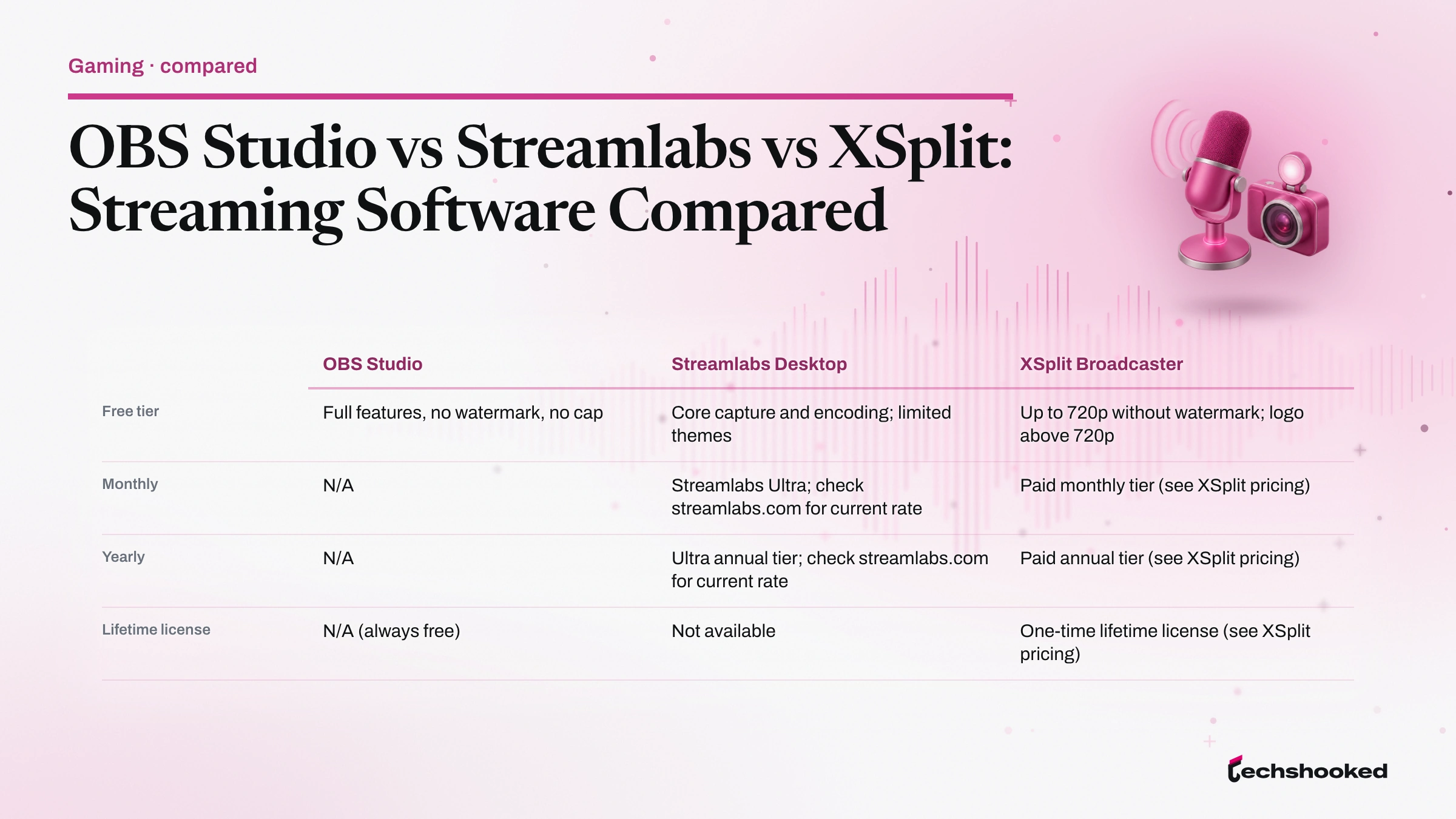
OBS Studio carries no cost at any tier and applies no watermark regardless of output resolution or platform. Streamlabs Desktop has a free tier with core capture and encoding features, while advanced capabilities including multistreaming and premium themes require an Ultra subscription. XSplit Broadcaster's free tier is functional for streamers staying at 720p output, but a watermark appears above that threshold per the XSplit Broadcaster pricing page. Paid plans for XSplit remove the watermark and unlock multistreaming. Pricing on all commercial tiers is subject to change; verify against vendor pages before committing.
| Plan type | OBS Studio | Streamlabs Desktop | XSplit Broadcaster |
|---|---|---|---|
| Free tier | Full features, no watermark, no cap | Core capture and encoding; limited themes | Up to 720p without watermark; logo above 720p |
| Monthly | N/A | Streamlabs Ultra; check streamlabs.com for current rate | Paid monthly tier (see XSplit pricing) |
| Yearly | N/A | Ultra annual tier; check streamlabs.com for current rate | Paid annual tier (see XSplit pricing) |
| Lifetime license | N/A (always free) | Not available | One-time lifetime license (see XSplit pricing) |
| Watermark | Never | Never on any tier | Free tier above 720p; removed on paid plans |
Which Software Should You Choose
OBS Studio, Streamlabs Desktop, and XSplit Broadcaster are the three live streaming software options that each target a distinct streamer profile. The decision turns on three axes: budget, operating system, and how much setup friction is acceptable.
Encoder settings in all three applications cover x264 software encoding and hardware encoding via NVENC or AMF, so the encoding surface is not a differentiator. Scene composition depth and the integrated tooling around it are where the tools diverge sharply. For hardware context relevant to streaming rig builds, the gaming monitor buying guide covers refresh rate and resolution considerations that directly affect encoder bitrate requirements.
Streaming performance headroom depends on CPU headroom. OBS on hardware encoding leaves the most room because it ships no overlay rendering engine, no alert system, and no widget framework. Streamlabs and XSplit both consume additional background resources to maintain those features, which raises the floor on recommended hardware.
- Choose OBS Studio for zero cost with no watermark at any resolution, native Linux or macOS support, or a custom scene composition setup built with plugins. OBS is the reference platform for streamers who are comfortable configuring encoder settings manually.
- Choose Streamlabs Desktop if you are a Windows or macOS streamer who wants alert overlays, integrated donation tools, and a theme marketplace without assembling each component separately. The free tier covers basic streaming; Ultra adds multistreaming and premium widget access.
- Choose XSplit Broadcaster if you are on Windows and want a polished drag-and-drop scene editor with built-in multistreaming on a paid plan. The lifetime license tier makes long-term total cost comparable to a multi-year Streamlabs subscription, and the watermark on the free tier is removed the moment a plan activates.
- Stay on the free tier if you are evaluating before committing: OBS costs nothing permanently, Streamlabs' free tier streams without a watermark, and XSplit's free tier is sufficient for 720p output.
The comparison is clearest at the extremes. A streamer on Linux with no budget has one viable option: OBS. A Windows streamer who wants integrated overlays and does not want to configure plugins has a straightforward path to Streamlabs. A Windows streamer who wants multistreaming with a polished interface and is prepared to pay once lands on XSplit's lifetime license tier.
References
- OBS Studio System Requirements (obsproject.com)
- Streamlabs Desktop System Requirements (support.streamlabs.com)
- XSplit Broadcaster System Requirements (support.xsplit.com)
- XSplit Broadcaster Plans and Pricing (xsplit.com)
Further reading
Frequently Asked Questions
Is XSplit free to use for live streaming?
XSplit Broadcaster offers a free tier that lets you stream up to 720p without a watermark; above 720p a small logo appears on the stream. Paid plans remove the watermark and come in monthly, yearly, and one-time lifetime license tiers, with current rates listed on the XSplit Broadcaster pricing page.
Does OBS Studio work on Mac and Linux?
Yes. OBS Studio runs on Windows, macOS, and Linux, making it the only cross-platform option in this three-way comparison. XSplit Broadcaster is Windows-only with no Mac version planned, while Streamlabs Desktop supports Windows and macOS 12 or higher.
Which streaming software uses the least CPU and RAM?
No vendor-published benchmark directly compares CPU usage across all three applications under identical workloads. OBS Studio official requirements note that CPU demand varies by encoder, resolution, frames per second, and scene complexity. Streamlabs recommends a recent mid-range CPU (current Intel Core i5 or AMD Ryzen equivalent) with 16 GB RAM for best results, which sets a higher baseline than OBS stated minimums.
Can XSplit Broadcaster stream to multiple platforms at once?
Yes. XSplit Broadcaster supports multistreaming, allowing you to broadcast simultaneously to platforms such as Facebook and YouTube. This feature is available on paid plans; the free tier focuses on single-destination streaming.