
Stream optimization is the technical discipline that configures encoder settings, upload bandwidth allocation, and ingest-server routing to deliver broadcast-quality video at the lowest viable bitrate. See also: SSD.
Every live broadcast resolves to the same three coupled variables: how the encoder turns a game frame into a packet, how much upload headroom the home connection sustains under load, and which ingest server the platform accepts the packet at. Get any one of them wrong and the viewer sees frame drops, smeared motion, or a buffering wheel. Get all three aligned and a 1080p60 stream on a mid-range PC can match the visual quality a partnered streamer pushes from a dedicated encoding rig. See also: indie game publishing platform.
The encoder choice carries most of the engineering weight, because everything downstream inherits its bitrate budget, keyframe interval, and codec format.
Encoder Fundamentals: x264 vs NVENC vs QuickSync vs AMF vs Apple VideoToolbox
The codec roadmap for game stream encoding now spans three actively deployed standards, each with distinct compression efficiency, silicon encoder support, and per-platform delivery status. The relative position of each codec drives the streaming quality settings any practitioner picks today and the upgrade path they plan for the next 18 months.
- H.264 (AVC). Universal support across every platform and every viewer device shipped in the past decade. Capped at 6 Mbps on Twitch ingest per published policy. The safe baseline for any stream targeting maximum audience compatibility, and the only codec a streamer can assume every viewer will decode in hardware.
- HEVC (H.265). Delivers 40 to 50 percent better compression than H.264 at equal visual quality. Accepted by YouTube Live ingest and parts of the Kick infrastructure. Limited viewer-side hardware decode on older mobile devices means YouTube re-encodes HEVC ingest to H.264 or VP9 for downstream delivery to incompatible clients.
- AV1. Royalty-free, 30 percent better compression than HEVC, defined by the Alliance for Open Media. Now supported in Twitch Enhanced Broadcasting (multi-track AV1 beta for select Partners during the 2024 to 2025 rollout) and YouTube Live (full ingest, AV1-capable viewers receive native AV1 delivery). NVENC AV1 on RTX 4070 and above, and AMF AV1 on RX 7900 XT and above, make real-time AV1 encoding at 1080p60 viable without CPU overhead.
The codec roadmap converges on AV1 over the next platform generation, with H.264 holding the compatibility floor for the foreseeable horizon. The IEEE AV1 Codec Overview covers the peer-reviewed compression analysis behind the format. Platform-side, ingest routing for multi-codec pipelines runs on microservice topologies similar to the patterns described in Microservices Communication: gRPC vs REST vs Message Queues.
Settings Ladder by Use Case: Speedrun, Cinematic AAA, and MMO Raid
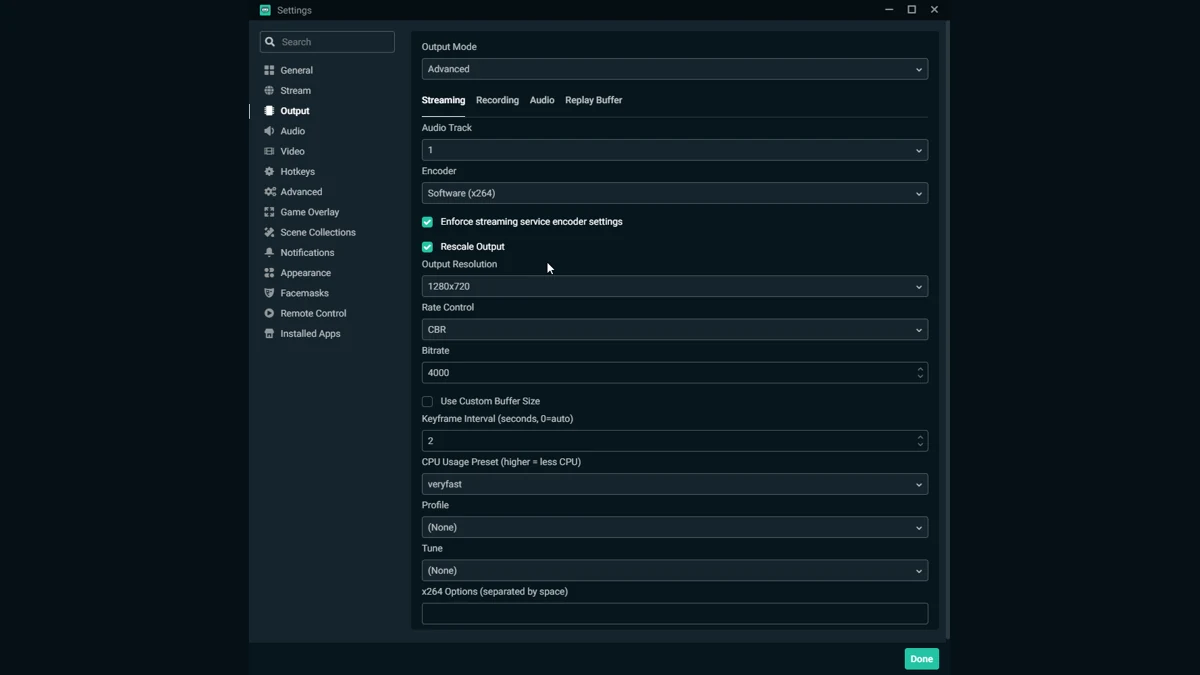
Stream optimization stops being abstract once the use case is fixed. A chat-heavy speedrun, a cinematic AAA set piece, and an MMO raid each impose different load shapes on the encoder, the GPU, and the upload pipe, and the right encoder settings differ accordingly. The table below maps three concrete profiles a practitioner can run as-is.
| Use case | Resolution | Bitrate | Encoder | Preset | B-frames | Min upload |
|---|---|---|---|---|---|---|
| Chat-heavy speedrun | 1080p60 | 6 Mbps CBR | x264 or NVENC | veryfast | 0 | 10 Mbps |
| Cinematic AAA | 1440p60 | 9 to 12 Mbps CBR | NVENC HEVC or AV1 | quality | 2 | 15 Mbps |
| MMO raid | 1080p60 | 4.5 to 6 Mbps CBR | x264 | medium | 2 | 10 Mbps |
The speedrun profile assumes a solo streamer on a Ryzen 5 or Core i5 reading chat while playing, so the preset stays at veryfast to keep CPU headroom for the game. The cinematic profile assumes a partnered streamer with an RTX 40-series GPU running the game at full GPU load, so the encode path moves to NVENC HEVC or AV1 to offload the CPU. The MMO raid profile favors x264 medium because static backgrounds and text-heavy UIs compress efficiently and benefit from the cleaner motion handling of the software encoder. Upload headroom matters most for MMO content because raid events generate upstream packet bursts that can starve the stream buffer.
When to Upgrade Your Setup
Four upgrade signals settle most rig-level questions. If OBS reports dropped frames above 0.5 percent, reduce bitrate before reducing resolution. If CPU encode usage stays above 80 percent through normal gameplay, switch to a ASIC encoder. If sustained upload is capped below 10 Mbps, stay at 1080p60 and do not chase higher resolution targets. If the rig already runs an RTX 4070 or RX 7900 XT or better, AV1 encode is viable today for YouTube Live; hold AV1 for Twitch until Enhanced Broadcasting exits beta and opens to non-Partner accounts. The platform comparison context behind these thresholds is covered in Best Streaming Platforms: Twitch vs YouTube vs Facebook, and the analyst view on streaming infrastructure rollout is tracked by Gartner Research.
Troubleshooting Dropped Frames and Encoding Overload
Streaming optimization failures resolve to one of two root causes that OBS distinguishes in its status bar. Network drops show as an orange or red network icon and are caused by lost packets or insufficient upload bandwidth. Encoder overload shows as a separate warning and is caused by CPU or GPU encode capacity exhaustion. The diagnostic ladder below isolates which path applies.
- Read the OBS Stats panel. Check dropped frames percentage, render lag, and encoding lag. Network drops appear as dropped frames; encoder pressure appears as render or encoding lag.
- For network drops, reduce bitrate by 25 percent. Confirm with a ping test to the ingest edge IP. Switch to the nearest ingest POP manually if frame loss persists.
- For encoder overload, shift the preset or the encoder itself. Move x264 from slow to fast, or switch from x264 encoder to dedicated encoder ASIC. If both paths are exhausted, drop output resolution from 1440p to 1080p.
Further reading
- Unity vs Unreal Engine for VR Games (engine-side frame pipeline and GPU budget context)
- How To Choose Between OBS, Streamlabs, And XSplit (broadcaster software comparison)
- Best Streaming Platforms: Twitch vs YouTube vs Facebook (platform-by-platform feature and policy comparison)
- Microservices Communication: gRPC vs REST vs Message Queues (backend topology for multi-codec ingest routing)