Power BI integration is a Microsoft business intelligence workflow that connects Excel workbooks to live semantic models for interactive dashboards and scheduled data refresh.
Excel remains the dominant surface for ad hoc analysis across finance, operations, and supply chain teams. Power BI integration extends that familiarity into a governed, centrally managed BI layer without forcing analysts to abandon their existing spreadsheet skills. The connection runs through the Power BI service or Power BI Desktop, and the path you choose depends on which direction data needs to flow: from Power BI into Excel, or from an Excel file up into Power BI.
Three distinct methods cover the full integration surface: the connected PivotTable path from the Power BI service, the Analyze in Excel add-in from Power BI Desktop or service, and direct Excel workbook import into Power BI. Each carries its own licensing prerequisites and refresh behavior. For a broader comparison of Power BI against competing platforms, the Power BI vs Tableau for enterprise analytics analysis covers the architectural tradeoffs in depth.
Why Connect Excel to Power BI
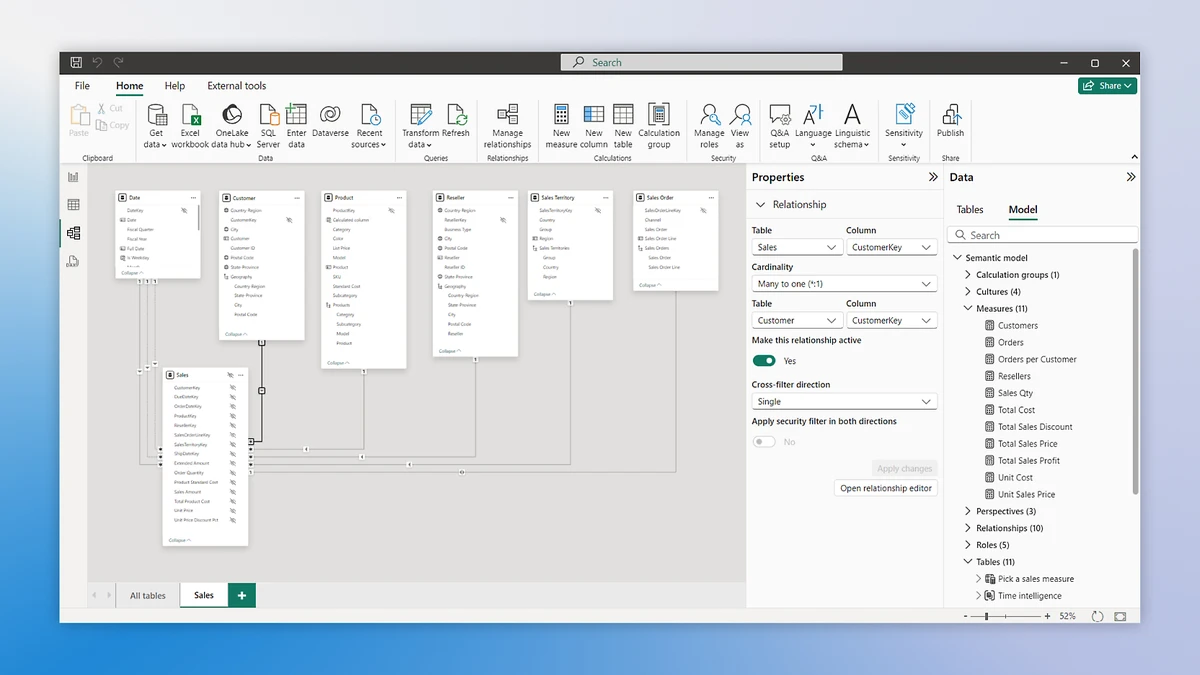
Excel handles familiar tabular analysis, but Power BI integration unlocks shared semantic models, live dashboards, and role-based access that a local spreadsheet cannot deliver. A workbook saved to a desktop silo cannot enforce row-level security, cannot push certified metrics to a broader audience, and cannot trigger scheduled data refresh against a cloud data warehouse. The Power BI data layer solves each of those gaps while keeping the Excel front end that analysts already know.
Organizations where analysts run separate copies of the same dataset face version drift: two analysts pull different numbers because each local file was refreshed at a different time. A connected dataset eliminates that drift by making Excel a thin query layer on top of a single authoritative source. The business intelligence layer owns the data; Excel owns the presentation.
Key reasons teams pursue Power BI integration over standalone spreadsheet workflows:
- Live data refresh: PivotTables connected to a Power BI dataset always reflect the most recent published data, not a point-in-time export.
- Centralized metric definitions: calculated measures authored once in the dataset propagate to every connected Excel report automatically.
- Row-level security: Power BI enforces access rules defined by dataset owners; the Excel user sees only the rows they are permitted to query.
- Collaboration without file sharing: multiple analysts can connect to the same dataset independently without passing Excel files by email.
- Audit trail: Power BI logs queries against the dataset, giving IT and compliance teams visibility that local spreadsheets lack.
Prerequisites: Licenses, Versions, and Permissions
Before any connection attempt, confirm that you hold a Power BI Pro or Premium Per User license, or a Fabric Free license with the semantic model in My workspace or on Premium or Fabric F64 or larger capacity, and that the dataset owner has granted you Build permission on the target semantic model. Free Microsoft 365 accounts do not include Power BI Pro. You can verify your license status and dataset permissions in Power BI online under Settings, as documented by Microsoft Learn: Power BI overview.
Excel version matters for the XMLA endpoint (XML for Analysis, the protocol that underpins direct dataset connectivity) path. Only Excel for Windows and Excel for the web support the connected PivotTable workflow. Excel for Mac and perpetual license editions are not listed as supported entry points in Microsoft documentation. The Analyze in Excel feature requires downloading an ODC (Office Data Connection) file from Power BI online, which is supported on Windows Excel builds. Full build requirements and XMLA endpoint details are covered in the Microsoft Learn: Connect Power BI semantic models in Excel reference.
Prerequisites at a glance:
- Power BI license
- Power BI Pro or Premium Per User (PPU). Workspace-level Premium capacity (P-SKU) also satisfies the requirement for users connecting to that workspace.
- Build permission
- The dataset owner must grant Build permission on the target dataset. Read permission alone allows viewing reports; it does not allow PivotTable or Analyze in Excel connections.
- Excel version
- Excel for Windows (Microsoft 365 subscription build) or Excel for the web. Excel for Mac and volume-license perpetual editions are not supported for connected PivotTable or Analyze in Excel workflows.
- XMLA endpoint
- Required for direct dataset connectivity from Excel. Enabled by default on Power BI Premium workspaces. Power BI Pro workspaces use the AIXL endpoint; Excel build 16.0.18129.x or higher connects via XMLA endpoint by default when available, as documented at learn.microsoft.com.
- Sensitivity label compatibility
- Datasets protected by Microsoft Purview Information Protection (MPIP) labels require that the connecting Excel client also supports those labels. Mismatches between the dataset's MPIP label and the Excel client's label support block the connection.
First Method: Insert a Connected PivotTable from the Power BI Service
The connected PivotTable path launches from inside the Power BI service and pushes a live-linked table directly into an open Excel workbook. This method requires no add-in download and works entirely within the browser-based Power BI online interface. The resulting PivotTable connects to the dataset via the XMLA endpoint, so data refresh reflects the model's most recently published state.
Steps to insert a connected PivotTable from the Power BI service, per Microsoft Support: Create a PivotTable from Power BI datasets:
- Open the Power BI service at
app.powerbi.comand navigate to the workspace containing the target dataset. - Select the dataset from the workspace content list to open its dataset details page.
- In the toolbar, select Analyze in Excel. The service generates an ODC file and offers a download prompt.
- Open the downloaded ODC file in Excel for Windows. Excel opens a new workbook with a live connection to the dataset.
- Alternatively, from inside Excel, go to Insert and select PivotTable from Power BI (available in Microsoft 365 subscription builds). A pane opens listing datasets you have Build permission to access.
- Select the dataset and click Insert. Excel places a connected PivotTable in the current worksheet.
- Build the PivotTable by dragging fields from the Field List. The PivotTable queries the live dataset each time you refresh or rearrange fields.
- To trigger a manual data refresh, right-click the PivotTable and select Refresh. Scheduled data refresh on the Power BI side propagates automatically on the next manual refresh from Excel.
The connected PivotTable remains live as long as the dataset exists in the Power BI service and the user retains Build permission. Revoking Build permission or moving the dataset to a different workspace breaks the connection; the analyst must reconnect using the updated workspace URL.
Second Method: Use Analyze in Excel from Power BI Desktop or Service

Importing an Excel workbook into Power BI uploads the file's data model and tables so Power BI Desktop can reshape, refresh, and publish them as a new report. This method moves data in the opposite direction from the first two: instead of connecting Excel to an existing Power BI semantic model, it promotes an Excel workbook into Power BI as the data source itself. Power Query handles the transformation layer before the data lands in the published dataset.
Steps to import an Excel workbook into Power BI, per Microsoft Learn: Get data from Excel workbook files in Power BI:
- Open Power BI Desktop and select Get Data from the Home ribbon.
- In the Get Data dialog, choose Excel Workbook from the file category, then navigate to the local or network workbook file.
- The Navigator pane displays all sheets and named tables in the workbook. Select the tables or ranges to import.
- Click Transform Data to open Power Query Editor, or Load to import directly without transformation. Power Query is the recommended path when column types, date formats, or header rows need adjustment before modeling.
- In Power Query, apply any required transformations: rename columns, remove nulls, set data types, and merge tables as needed. Each transformation step is recorded and replayable on data refresh.
- Select Close & Apply to load the transformed tables into the Power BI Desktop data model.
- Build visuals on the Report canvas. When the report is ready, publish it to the service via File > Publish > Publish to Power BI. The published dataset becomes available to colleagues who have Build permission.
For context on how this workflow fits broader BI adoption patterns, the self-service BI compared to traditional analytics article examines when import-based modeling is appropriate versus governed enterprise pipelines.
XMLA Endpoint and DirectQuery: Advanced Connection Modes
Excel build 16.0.18129.x or higher connects to Power BI semantic models through the XMLA endpoint by default, providing better performance and resilience than the older AIXL endpoint. The XMLA endpoint (XML for Analysis, a standard protocol for analytical data sources) exposes Power BI Premium datasets to any XMLA-compatible client, including Excel, SQL Server Management Studio, and third-party BI tools. Both build requirements and the MSOLAP 160.139.29 driver version are documented at Microsoft Learn: Connect Power BI semantic models in Excel.
DirectQuery is a separate Power BI data access mode, not an Excel connection protocol. In DirectQuery mode, Power BI Desktop sends queries to the source database at report render time rather than importing data into the dataset. This means the dataset holds no cached data; every visual renders against a live database query. The tradeoff is latency versus freshness, as documented by Microsoft Learn: DirectQuery in Power BI.
The following table compares XMLA endpoint connectivity and DirectQuery across key operational dimensions:
| Dimension | XMLA Endpoint (Excel to Power BI) | DirectQuery (Power BI to source) |
|---|---|---|
| Connection direction | Excel queries the Power BI dataset | Power BI queries the source database at render time |
| Data freshness | Reflects last scheduled data refresh on the dataset | Live: each visual queries the source directly |
| Latency | Low: queries cached in-memory model (VertiPaq engine) | Higher: depends on source database response time |
| License requirement | Power BI Pro or Premium for XMLA read access | Power BI Desktop (free) to build; Pro or Premium to publish |
| Excel compatibility | Excel for Windows (a recent build) and Excel for the web | Not applicable to Excel connection; applies to Power BI reports only |
Troubleshooting Common Connection Errors
Most Excel-to-Power-BI connection failures trace back to three root causes: missing license, denied dataset Build permission, or a sensitivity label mismatch enforced by Microsoft Purview Information Protection (MPIP). Understanding which layer is blocking the connection narrows the fix quickly. The common challenges with traditional analytics tools article provides broader context on governance friction in enterprise data environments.
- Error: "You need a Power BI Pro license"
- The connecting user's Microsoft 365 account does not include a Power BI Pro or PPU license. Assign a Pro license in the Microsoft 365 admin center, or confirm the target workspace is on Premium capacity, which allows licensed-free viewer access for some scenarios but not dataset Build connections from Excel.
- Error: "You don't have permission to access this dataset"
- The dataset owner has not granted Build permission to the connecting user. The dataset owner must open the dataset's permission settings in Power BI online and add the user with Build permission explicitly. Read permission alone is insufficient for connected PivotTable and Analyze in Excel workflows.
- Error: "The dataset contains sensitivity labels that Excel cannot consume"
- The dataset carries an MPIP sensitivity label (formerly Azure Information Protection label) that the local Excel client does not support. Ensure the Microsoft Information Protection unified labeling client is installed and the Excel build supports the label policy enforced on the dataset. In some configurations, IT must update the label policy or downgrade the dataset label to allow Excel connectivity.
- Error: "Cannot connect to the data source" or ODC file fails to open
- The ODC file references a workspace or dataset that has been moved, renamed, or deleted since the file was generated. Regenerate the ODC file from the current dataset location in the Power BI service and replace the saved ODC file in the workbook. Also verify that the Power BI service endpoint is reachable from the network, as some corporate proxy configurations block the XMLA endpoint port.
- Stale data after refresh
- The connected PivotTable reflects the dataset's last scheduled data refresh, not the raw source data. If the source data has updated but the dataset has not refreshed yet, the PivotTable will show the prior snapshot. Check the dataset's scheduled data refresh configuration in Power BI online settings and confirm the gateway connection to the source is active.
For integration planning guidance across the wider Microsoft data stack, Microsoft Learn: Power BI integration planning with other services covers the architectural decision points for connecting Power BI to Office 365, Azure Synapse, and other enterprise services.
Further reading
- Microsoft Learn: Connect Power BI semantic models in Excel (build requirements, XMLA endpoint details, and MSOLAP driver versions).
- Microsoft Learn: Analyze in Excel for Power BI (step-by-step ODC file setup and license prerequisites).
- Microsoft Support: Create a PivotTable from Power BI datasets (Insert menu path and field list configuration).
- Microsoft Learn: DirectQuery in Power BI (storage mode selection and latency tradeoffs).
- Microsoft Learn: Power BI integration planning (enterprise architecture guidance for multi-service deployments).
- Predictive Analytics in Business Intelligence: Forecasting with BI Tools
- Remote Work Tools vs In-Office Tools: A Hybrid Workplace Decision Framework
- SaaS Productivity Suites for Project Management Compared
- PowerBI.tips: Analyze in Excel - The Advanced Method
Frequently Asked Questions
Do I need a paid Power BI license to connect Excel to Power BI semantic models?
Yes, a Power BI license is required to connect Excel to Power BI semantic models. You also need Build permission on the underlying dataset. Free Microsoft 365 accounts do not include this capability; a Power BI Pro or Premium Per User license is the minimum.
Which Excel versions support the connected PivotTable workflow?
Excel for Windows and Excel for the web support connected PivotTables from Power BI. Excel for Mac and perpetual versions are not listed as supported entry points in Microsoft documentation. A recent Excel for Windows build enables the XMLA endpoint connection by default.
What is the difference between importing an Excel file into Power BI and connecting to a Power BI semantic model from Excel?
Importing uploads a static copy of your Excel data into Power BI for modeling and visualization. Connecting to a semantic model from Excel maintains a live link so PivotTables always query current data without re-uploading the file.
Can I use DirectQuery to connect Excel directly to a source database through Power BI?
DirectQuery is a Power BI data access mode that queries the source at report time rather than importing it. It applies to Power BI reports, not the Excel connection itself, which uses the XMLA or AIXL endpoint to reach the Power BI semantic model.