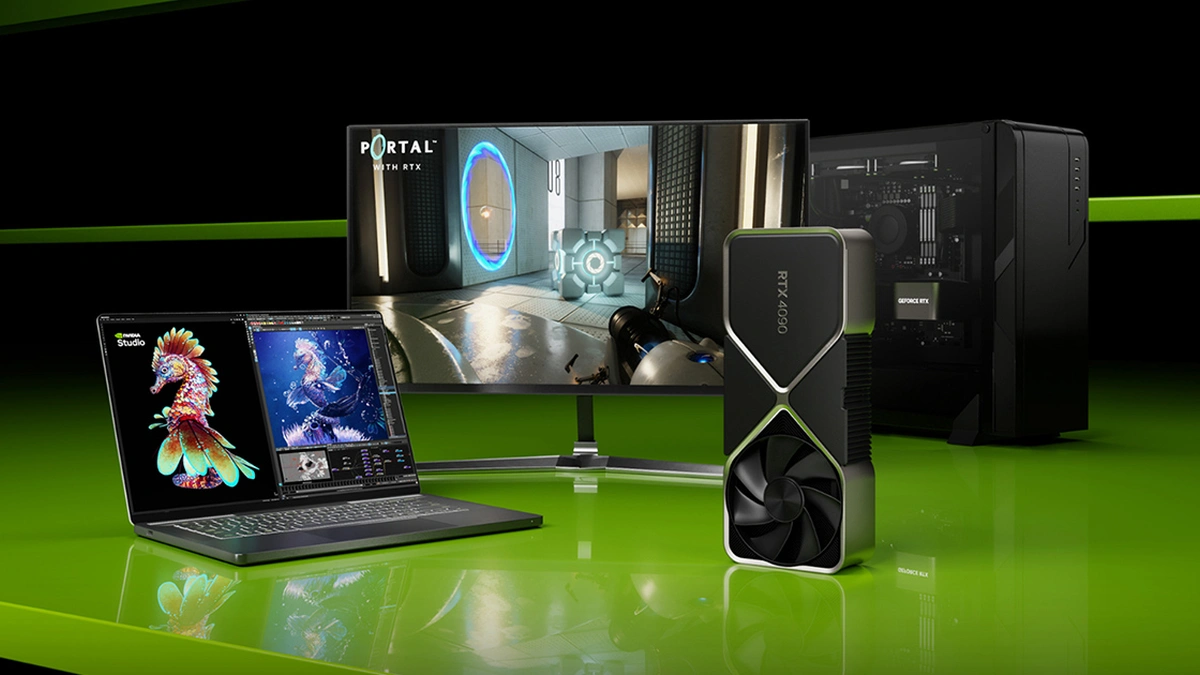
A CPU vs graphics processing unit (GPU) comparison is an architectural analysis that maps processor design trade-offs, serial latency against parallel throughput, to the demands of productivity workloads and gaming performance. The two chips are not rivals competing for the same job. They are complementary engines, and the practical question for any builder is whether a given workload lives on the CPU's small set of fast cores or on the GPU's wide grid of slower ones. Intel frames it plainly in its CPU vs GPU explainer: "it is no longer a question of CPU versus GPU. More than ever, you need both to meet your varied computing demands." The CPU vs GPU comparison that follows treats each processor on its own terms, then routes real workloads (gaming, video editing, compilation, 3D rendering) to whichever silicon actually constrains performance.
What a CPU Does: Serial Latency at Scale
The central processing unit (CPU) is the orchestration layer of every general-purpose computer. Consumer chips in the current Ryzen 9000 and Intel Core Ultra 200 generations expose a modest core count, with Ryzen 9000 offering 6 to 16 cores and Core Ultra 200 delivering similar ranges, and each core is engineered for low-latency serial execution of branching, control-heavy code. Where the CPU wins is per-core throughput: high clock speed, deep instruction-level parallelism, large per-core caches, and high instructions per clock (IPC). The CPU runs the operating system scheduler, application threads, game logic, input handling, and physics simulation that cannot be trivially fanned out across thousands of workers.
Modern game engines and productivity apps schedule background work through a worker thread pool sized roughly to the available CPU core count, which is why the central processing unit remains the program's pacemaker even when a discrete GPU handles the heavy pixel math.
- Core count: Four to twenty-four physical cores on current consumer desktop parts; each core executes one or two hardware threads.
- Clock speed: Sustained boost clocks in the 4.5 to 6.0 GHz range, prioritizing single-thread latency.
- Instructions per clock (IPC): How much real work each core completes in one cycle; the dominant factor in serial execution speed.
- Cache hierarchy: Multi-level L1, L2, and L3 caches measured in megabytes, designed to keep latency-critical data near the core.
- Thread scheduling: The OS scheduler hands a worker thread pool to applications; oversubscribing it can hurt latency-sensitive workloads.
What a GPU Does: Parallel Throughput at Scale
In gaming, the CPU vs GPU split is decided by resolution, game engine, and settings. At 1080p with moderate settings, frame rate is often capped by the CPU because draw calls, AI, and simulation logic finish faster than the GPU can be fed. Raise the resolution to 1440p or 4K with ultra settings and the bottleneck shifts: the GPU now spends so long shading each frame that the CPU sits idle between submissions. That is a textbook GPU-bound workload.
Engine assumptions matter too. NVIDIA's developer team notes that many PC games are designed around an eight-core console assumption and that "on high-end desktop systems with greater than eight physical cores, some titles can see performance gains of up to 15% by reducing the thread count of their worker pools to be less than the core count of the CPU." Translation: a sixteen-core CPU does not automatically scale a worker thread pool linearly, and over-threading can turn a CPU-bound workload from merely tight into actively contended. Processor selection across mixed-use builds is covered in best desktop CPU for productivity and gaming.
| Scenario | Primary bottleneck | Why |
|---|---|---|
| 1080p, high settings, AAA title | CPU bottleneck | Draw calls and simulation finish faster than 60+ fps GPU work; CPU paces the frame rate. |
| 1440p, ultra settings, AAA title | Mixed, leaning GPU | Shading load per frame rises; GPU saturates before CPU does on most engines. |
| 4K, ultra settings, AAA title | GPU bottleneck | GPU memory bandwidth and shader throughput dominate; classic GPU-bound workload. |
| Competitive esports, low settings, high refresh | CPU bottleneck | Frame target above 240 fps; CPU per-core latency and IPC drive the cap. |
| Open-world simulation (Cities, MSFS, Star Citizen) | CPU bottleneck | Heavy entity logic and physics saturate worker thread pool before GPU work begins. |
| Story-driven AAA with ray tracing on | GPU bottleneck | BVH traversal and denoising load the GPU to 99%; CPU-bound workload is secondary. |
CPU vs GPU in Productivity: Workload Routing
Productivity software splits along the same architectural fault line. Apps that decompose into thousands of independent operations (rendering rays, encoding macroblocks, multiplying tensors) become a GPU-bound workload. Apps dominated by branching logic, single-stream parsing, or serial execution against shared state remain a CPU-bound workload. The router below shows where the dominant load sits for common professional tools, and how SSDs, RAM, and motherboards affect system performance often determines whether either chip can actually be fed.
- Video export and encoding. CPU-dominant for software encoders such as x264 and x265 at high-quality presets. GPU-dominant when hardware-accelerated rendering paths (NVENC on NVIDIA, AMF on AMD, QuickSync on Intel) handle H.264 or HEVC encode.
- 3D rendering. GPU-dominant on modern path tracers. Blender Cycles in GPU mode, Octane, and Redshift all dispatch ray-shading kernels across the shader array and scale with the GPU bandwidth.
- AI and ML inference. GPU-dominant via CUDA on NVIDIA and ROCm on AMD; tensor cores accelerate matrix math through parallel processing that no general-purpose CPU can match.
- Photo editing and retouching. CPU-dominant for the application backbone, with select filters and AI masks offloaded to the GPU through hardware-accelerated rendering plugins.
- Code compilation. CPU-bound workload that scales with core count and IPC; build systems like Ninja and Bazel parallelize translation units across the worker threads.
- Spreadsheet modeling and data wrangling. CPU-bound and often single-threaded; sequential execution of formula chains rewards high clock speed and large L3 cache more than core count.
How to Tell Which Component Is Your Bottleneck
Diagnosis is straightforward with built-in tooling. The goal is to watch utilization during the actual workload, not at idle, and let the saturation pattern tell you which processor is paced and which is waiting.
- Open Task Manager on the Performance tab while the game or app runs at the resolution and settings you actually use.
- If GPU utilization sits below roughly 90% while one or more CPU threads are saturated near 100%, you have a CPU bottleneck. A faster CPU or fewer background processes will lift frame rate.
- If GPU utilization holds at 98 to 99% while CPU threads remain partially loaded, you have a GPU bottleneck. Lower resolution, drop ray tracing, or upgrade the GPU.
- For per-frame diagnosis, use the Intel GPA System Analyzer, which displays CPU, GPU, and graphics API metrics in real time and flags imbalanced CPU and GPU workload as a performance issue.
Intel's game optimization methodology adds a useful guardrail for upstream decisions: "use a balanced system where the CPU and GPU both belong to the same time period and price range." Pair a mid-range CPU with a mid-range GPU and you eliminate most pathological mismatches before profiling begins.
Allocating Your Upgrade Budget: CPU or GPU First
Once you know which chip is your bottleneck, upgrade budget allocation discipline. Sound upgrade budget allocation becomes a routing problem rather than a brand fight. The matrix below assumes a fixed total build budget and asks where the next dollar buys the most frames or the shortest export time. Percentages indicate roughly how much of the total component spend (CPU plus GPU) should land on each side for that workload class. For platform-level trade-offs across silicon families, the companion Apple Silicon vs Intel vs AMD performance comparison walks through the architectural differences that change these ratios on laptops.
| Workload | Prioritize GPU upgrade when... | Prioritize CPU upgrade when... |
|---|---|---|
| Gaming at 1440p or 4K with ultra settings | You are GPU-bound; spend roughly 60 to 70% of the CPU+GPU budget on the GPU. | Rarely; only if the existing CPU is two generations behind. |
| Esports and competitive shooters at high refresh | Only at 1440p or above with demanding settings. | You are CPU-bound; spend 50 to 60% on the CPU to raise the frame rate ceiling. |
| Open-world simulation (flight sim, city builder) | Only after the CPU floor is solved. | CPU-bound workload; favor high IPC and 8 to 16 fast cores over more GPU. |
| Video editing with hardware-accelerated export | Heavy color grading and 4K timelines benefit from VRAM and shader throughput. | Long-form software encode at high-quality presets stays CPU-bound. |
| 3D rendering (Blender Cycles, Octane, Redshift) | Always; this is a GPU-bound workload that scales with shader count and VRAM. | Only if your scenes spill VRAM and force CPU fallback. |
| AI and ML inference or local LLM | Always; tensor cores and VRAM bandwidth define performance. | Only for CPU-only inference paths or data preprocessing pipelines. |
| Code compilation, large monorepo builds | Almost never. | CPU-bound workload; prioritize core count and L3 cache. |
| Streaming while gaming with NVENC or AMF | GPU rendering and encoder blocks live on the GPU; one card handles both. | Only if running software x264 encode for a second PC workflow. |
The pattern is consistent with Intel's stated position that the best results come from using the right tool for the job. A balanced build spends in proportion to where the workload actually lives, not in proportion to which chip generates more marketing copy.
Further reading
Frequently Asked Questions
Is the GPU more important than the CPU for gaming?
For most gaming scenarios at 1440p and above with high graphical settings, the GPU is the primary performance driver because it handles rasterization, shading, and frame output. The CPU becomes the bottleneck in esports titles, simulation-heavy games, and open-world engines that rely on large the worker pools. In those cases, a faster CPU delivers more frames even with the same GPU.
Can a powerful CPU compensate for a weak GPU in gaming?
No. A powerful CPU cannot substitute for an underpowered GPU when the workload is GPU-bound. The CPU can feed draw calls and game logic faster, but if the GPU lacks the shader throughput or memory bandwidth to process frames at the target resolution and settings, frame rate remains constrained by the GPU regardless of CPU speed. The correct fix is upgrading the GPU or reducing resolution and graphical settings.
How does a GPU speed up productivity tasks?
A GPU accelerates productivity tasks that decompose into thousands of parallel operations. 3D rendering engines such as Blender Cycles or Octane run each ray-tracing calculation as an independent GPU thread, reducing render times from hours to minutes. Video-export pipelines in DaVinci Resolve and Premiere Pro offload H.264 and HEVC encoding to dedicated GPU hardware-acceleration blocks (NVENC, AMF, or QuickSync), dramatically lowering CPU load during export.