A graphics card is the component that determines how well your PC renders games and handles local AI workloads, making it the most consequential hardware decision in any gaming or AI-capable build. Choosing the wrong tier locks you into a card that either bottlenecks at your target resolution or runs out of video RAM (VRAM) before the product cycle ends. The GPU market spans three vendors with distinct software ecosystems, five or more tiers by price and performance, and a growing secondary use case in local AI inference that changes how much VRAM headroom actually matters.
The Decision Framework: What to Nail Down Before Comparing Cards

Before comparing specs, narrow your requirements to three variables: your target resolution, whether gaming or local AI inference is the primary workload, and your honest budget ceiling. Skipping this step leads to spec-sheet comparisons that answer the wrong question. A card that delivers smooth frame rate at 1080p may hit a VRAM ceiling at 1440p within one or two title releases. A GPU optimized for raw frame rate at 60 Hz may be overkill for a builder who wants stable performance at 144 Hz on a mid-range monitor. The CPU vs GPU roles in gaming and productivity shapes the budget split: the GPU deserves the larger share in any gaming-primary or AI inference-primary build, while CPU-heavy workloads like video encoding or simulation shift that balance.
Work through these three decisions in order before opening a product page:
- Set your target resolution. 1080p, 1440p, and 4K each require meaningfully different VRAM capacity and processing throughput. Lock this first; everything downstream follows from it.
- Identify your primary workload. Gaming-only, AI inference-only, and mixed workloads have different VRAM floor requirements. AI inference is VRAM-bound in ways gaming rarely is, so a dual-use build needs more headroom than a pure gaming build at the same resolution.
- Set a firm budget ceiling. GPU pricing moves with market conditions and product cycles. Decide the maximum spend before comparing cards so benchmark scores don't pull you into a tier the rest of the build can't support.
Specifications That Actually Drive Performance

Four specifications separate cards that handle your workload from those that bottleneck it: VRAM capacity, memory bandwidth, board power (TDP), and the vendor's driver and software ecosystem. Most other numbers in a spec sheet, including clock speeds and core counts, are useful for benchmarking within a product family but do not translate cleanly across vendors. The how SSDs, RAM, and motherboards shape system performance matters here too: a fast graphics card cannot compensate for a system bottleneck upstream.

- VRAM capacity
- VRAM is the on-card memory that holds textures, frame buffers, and AI model weights. When a workload exceeds VRAM capacity, the card spills to system RAM at a severe throughput penalty. For gaming, treat 8 GB as the practical floor for current titles at 1080p; 1440p play benefits from 12 GB or more; 4K and texture-heavy workloads push into the 16 GB range. For AI inference, VRAM capacity is a hard ceiling: a model that exceeds it cannot be fully loaded.
- Memory bandwidth
- Memory bandwidth determines how fast data moves between VRAM and the GPU's processing cores. Higher memory bandwidth reduces stutter in texture-heavy scenes and allows AI inference tasks to feed the compute units without waiting. Enthusiast-class cards carry substantially higher memory bandwidth than entry-level cards, and that gap widens at higher resolutions where texture throughput dominates frame time.
- Board power (TDP)
- Thermal design power sets the wattage draw under sustained load. A higher TDP card delivers more performance headroom but requires a power supply unit (PSU) with adequate capacity and the correct connector type. Mid-range cards typically draw in the 150 W to 200 W range; enthusiast-class cards frequently exceed 300 W. This number determines whether a PSU upgrade is part of the purchase.
- Driver and software ecosystem
- Driver maturity, upscaling technology support, and AI framework compatibility differ across vendors. NVIDIA GeForce, AMD Radeon, and Intel Arc each maintain distinct driver ecosystems that affect game compatibility, upscaling quality, and AI tool support. For workloads beyond gaming, the ecosystem matters as much as the raw specs.
Tiers by Use Case: Gaming vs AI vs Both
Matching card tier to actual use case prevents both overspending and buying a card that runs out of VRAM within a product cycle. The three broad tiers (entry-level, mid-range, and enthusiast-class) each serve different resolution targets and local AI workload capacities. NVIDIA GeForce RTX cards support AI inference through the NVIDIA AI on RTX platform (nvidia.com/ai-on-rtx), with VRAM tiers that map directly to model size compatibility. For Intel Arc desktop cards, the Intel Arc discrete GPU lineup covers entry and mid-range positions with XeSS upscaling support.
| Tier | Target Resolution | Gaming Suitability | AI Inference Capacity | Ecosystem Notes |
|---|---|---|---|---|
| Entry-level | 1080p | Most current titles at medium-to-high settings; 60 Hz frame rate target | Smaller models only; VRAM ceiling limits model size | All three vendors compete here; Intel Arc offers strong entry-level value with XeSS upscaling |
| Mid-range | 1440p primary; 1080p high-refresh | High settings across current titles; 144 Hz frame rate targets achievable | Medium-sized models; sufficient VRAM for most consumer AI tools | NVIDIA GeForce and AMD Radeon dominate; DLSS and FSR upscaling both available at this tier |
| Enthusiast-class | 4K; 1440p high-refresh | Maximum settings at 4K or high-refresh 1440p; ray tracing at playable frame rates | Large models; ample VRAM for local AI workloads including multi-modal inference | Primarily NVIDIA GeForce at the top tier; full AI on RTX platform access; highest memory bandwidth |
The NVIDIA, AMD, and Intel Ecosystem Divide

Vendor choice shapes more than raw performance: driver maturity, upscaling technology, and AI framework compatibility differ meaningfully across NVIDIA GeForce, AMD Radeon, and Intel Arc. A GPU that leads in rasterization benchmarks may underperform in ray tracing or AI inference if the driver ecosystem doesn't support those workloads well. The Apple Silicon vs Intel vs AMD processor comparison illustrates how ecosystem differences compound beyond raw silicon. For discrete graphics, the vendor split runs deeper.
- NVIDIA GeForce. The broadest AI framework support among consumer cards, with CUDA compatibility for PyTorch, TensorFlow, and most local AI inference tools. DLSS upscaling uses dedicated Tensor Cores to reconstruct frames at higher output resolution, preserving frame rate at 4K and 1440p. The NVIDIA AI on RTX platform (nvidia.com/ai-on-rtx) gives GeForce cards a defined path for running local AI workloads. Driver ecosystem is mature across both current and legacy titles.
- AMD Radeon. FSR (FidelityFX Super Resolution) is an open-standard upscaling technology that runs on any GPU, not just Radeon cards, giving AMD a flexibility advantage in cross-platform upscaling. AMD's ROCm platform has expanded AI inference compatibility, though framework support remains narrower than NVIDIA's CUDA ecosystem. AMD Radeon covers entry through enthusiast tiers and is competitive on rasterization performance, particularly at mid-range price points. No AMD-specific VRAM or bandwidth figures are cited here as primary-source verification was unavailable at time of writing.
- Intel Arc. Intel Arc is the newest entrant, with XeSS upscaling as the signature feature and a growing driver support record since the initial rocky launch period. Intel Arc desktop cards, including the B-series lineup (intel.com/arc/desktop/b-series), target entry and mid-range buyers. Arc supports Intel's OpenVINO AI toolkit, though AI framework breadth trails NVIDIA at this stage. Driver maturity has improved but warrants checking game compatibility lists before purchasing for older titles.
System Compatibility Checks Before You Buy
A graphics card purchase can force secondary upgrades if power supply capacity, PCIe slot generation, and physical case clearance are not verified against your existing system. Many GPU returns and frustrating post-install troubleshooting sessions trace back to a skipped compatibility step, not a defective card. The gaming PC component selection guide covers the full build context; for a GPU-specific check, run through these four items before ordering.
- Verify power supply capacity and connector type. Entry-level cards typically require 500 W to 550 W; mid-range cards generally need 650 W or more; enthusiast-class cards can demand 850 W or higher under sustained load. Check the card manufacturer's minimum PSU recommendation on its official product page, then add headroom for the rest of the system. Confirm your power supply unit carries the correct connector type for the card's power input, particularly for recent high-wattage designs that use updated connector standards.
- Check PCIe slot generation. Current discrete graphics cards use PCIe x16 slots. Newer PCIe generations offer higher theoretical bandwidth, though most gaming workloads are not bandwidth-limited by the slot. Confirm your motherboard has an available x16 slot and note the generation for context when comparing card specifications.
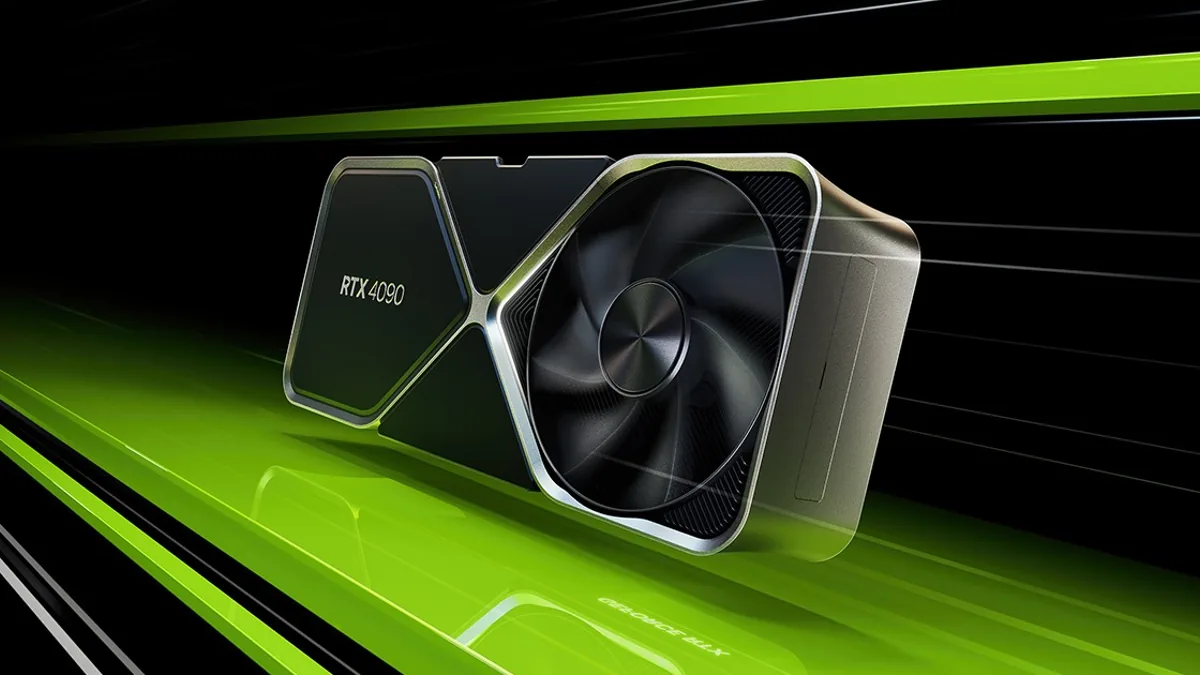
- Measure physical case clearance. Enthusiast-class and many mid-range cards are long; some tri-fan designs exceed 330 mm. Measure the GPU clearance spec in your case against the card's length and check cooler height against the case's cooler clearance. Wide coolers can also block adjacent PCIe slots.
- Run a CPU bottleneck check. A high-end GPU paired with an aging CPU can shift the performance ceiling from the graphics card to the processor, particularly at 1080p where the CPU processes more frames per second. At 1440p and 4K, GPU workload dominates and bottleneck risk drops, but verifying the pairing prevents disappointment on frame rate targets.
Common Buying Mistakes and How to Avoid Them
The most expensive GPU buying mistakes share a pattern: optimizing for a single benchmark while ignoring VRAM headroom, total platform cost, or the software ecosystem that the workload actually depends on. The laptops vs desktops vs workstations buying comparison covers similar tradeoffs at the system level; for discrete graphics purchases specifically, these are the failure modes that repeat.
- Choosing VRAM capacity for one workload and ignoring the other. A gaming-optimized card with limited VRAM will struggle with AI inference. A card chosen for AI inference headroom may carry a higher price than gaming alone justifies. Identify the primary workload first, then verify the VRAM floor covers both.
- Ignoring PSU upgrade cost in the total budget. A GPU that requires a new power supply adds real cost to the purchase. Factor PSU replacement into the budget comparison before concluding that a higher-tier card is out of reach.
- Treating gaming benchmark scores as AI inference performance proxies. Ray tracing performance, rasterization throughput, and AI inference throughput use different hardware units. A card that leads in gaming benchmarks may not lead in AI inference tasks. Check AI-specific performance data from the vendor's AI-on-GPU pages rather than gaming-focused review scores.
- Buying prior-generation stock at near-current-generation pricing. Product cycle timing matters. A prior-generation card at a modest discount to its successor may deliver worse performance-per-dollar and a shorter forward compatibility window. Verify where the card sits in the current product cycle, not just its spec sheet.
- Assuming driver ecosystems are equivalent across vendors. Game compatibility lists, upscaling quality, and AI framework support differ across NVIDIA GeForce, AMD Radeon, and Intel Arc. Check the driver ecosystem against your specific titles and tools before committing to a vendor, particularly for mixed gaming and AI workloads where CUDA dependency is common.
Putting It Together: A Resolution-and-Workload Decision Path
A final ordered decision path ties resolution target, primary workload, and budget ceiling into a tier recommendation without needing to memorize individual model numbers. The desktop CPU selection for productivity and gaming follows the same logic for the processor side of the build; for the GPU, work through these steps in sequence.
- Set your resolution floor. 1080p maps to entry-level; 1440p maps to mid-range; 4K maps to enthusiast-class. If you intend to upgrade your monitor within the card's product cycle, size up one tier.
- Identify the primary workload. Gaming-only allows the lower VRAM floor for a given tier. Local AI inference requires additional VRAM headroom at each tier. Mixed-use builds should be sized against the AI inference requirement, not the gaming requirement.
- Set your VRAM floor. 8 GB for 1080p gaming-only; 12 GB or more for 1440p or AI inference use; 16 GB or more for 4K or larger local AI workloads.
- Set your PSU floor. Confirm PSU capacity and connector compatibility against the cards in your target tier before shortlisting. Rule out cards that require a PSU upgrade outside your budget.
- Compare cards at that tier on vendor pages. Check the NVIDIA GeForce lineup at nvidia.com/geforce, the Intel Arc lineup at intel.com/arc, and AMD Radeon's current product pages for up-to-date specs and pricing. Verify upscaling support, AI framework compatibility, and driver release notes for your target titles before finalizing the purchase.
References
- NVIDIA GeForce RTX 40 Series: Official Product Lineup
- NVIDIA AI on RTX: AI-Capable Consumer GPU Overview
- Intel Arc Discrete GPU Overview
- Intel Arc Desktop B-Series Overview
Further reading
Frequently Asked Questions
How much VRAM do I actually need for gaming today?
For 1080p gaming, 8 GB of VRAM covers the overwhelming majority of modern titles. 1440p play benefits from 12 GB or more, while 4K or texture-heavy workloads push comfortably into the 16 GB range. Entry-level cards with less than 8 GB can struggle with newer titles at high settings, so treat 8 GB as the practical floor for any card bought today.
Can I use a gaming GPU for local AI inference?
Yes, consumer gaming GPUs run local AI workloads, but VRAM capacity is the hard limit: a model that exceeds your card's memory cannot be fully loaded. NVIDIA GeForce cards benefit from a broader software framework ecosystem for AI tools than Arc or Radeon at this stage, though AMD's ROCm platform has expanded compatibility. Matching VRAM to your target model size before buying avoids the most common mismatch.
What power supply wattage do I need before upgrading my GPU?
Check the GPU manufacturer's minimum PSU recommendation on its official product page, then add headroom for the rest of your system. Mid-range cards typically need a 650 W supply; enthusiast-class cards can exceed 850 W under sustained load. Undersized PSUs cause crashes and instability rather than obvious failure, so verifying wattage and connector requirements before purchase prevents a costly secondary upgrade.